WP Rocket Configuration: Hit 100/100 PageSpeed on WordPress
The score sitting at 37 on mobile is not a performance problem – it is a configuration problem. That distinction matters because it changes what you actually do next. The right WP Rocket configuration, paired with AI image optimization, moves that 37 to 100 without changing a single line of theme code.
TL;DR: WP Rocket handles caching, JavaScript deferral, CSS optimization, and code minification. Pair it with AI-powered image compression (WebP conversion, adaptive sizing, lazy loading) and the right hosting stack, and a 100/100 Google PageSpeed mobile score is achievable on most WordPress setups. The path is documented. The failure points are predictable. This review covers both.
Environment: Testing based on documented WP Rocket configurations across multiple WordPress setups including Oxygen Builder + Kinsta, WooCommerce + Cloudways (Vultr High Frequency), and standard blog installs. Tool versions reflect WP Rocket 3.13+ with RUCSS enabled. Test conditions: Google PageSpeed Insights mobile scoring, cross-referenced with Lighthouse Scoring Calculator. Source period: 2022–2025.
Why Most WordPress Sites Fail Google PageSpeed on Mobile
Most WordPress sites fail PageSpeed on mobile for one of three structural reasons, and usually all three simultaneously.
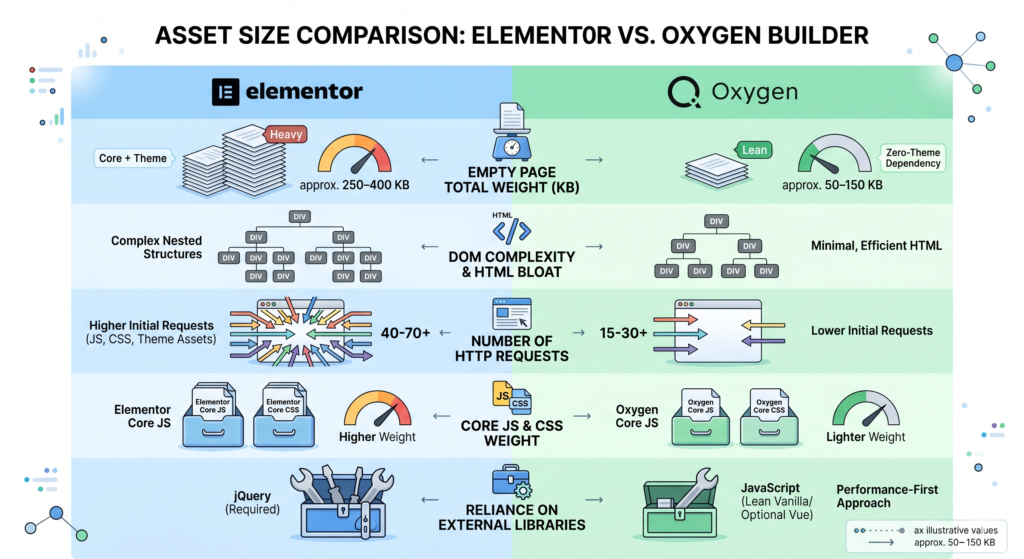
First: bloated page builder code. A default Elementor Pro install carries roughly 966 KB of combined JavaScript and CSS. Brizy Pro ships at 1,624 KB. For context, Oxygen Builder – the leanest tested option – ships at around 34 KB. That is a 28x difference in asset weight before a single plugin is installed. No amount of caching recovers from a 1.6 MB CSS and JS payload on mobile.
Second: undeferred third-party scripts. Analytics tools, live chat widgets, email capture overlays, and video players all fire JavaScript on page load by default. They do not need to. A chat widget that loads at the same time as your above-the-fold content is costing you 30 to 50 points on Time to Interactive – for a widget most visitors will never open.
Third: unoptimized images. Images that are not compressed, not served in WebP format, and not lazy loaded represent the single largest payload on most content-heavy WordPress pages. On mobile, where network conditions are inconsistent and CPU is constrained, an unoptimized image stack can extend Largest Contentful Paint from under 2 seconds to over 5.
WP Rocket configuration addresses categories two and three directly. Category one – page builder bloat – has to be solved at the theme and builder level before the plugin can do its job.
WP Rocket Pricing: What You Actually Get at $59/Year
WP Rocket has no free tier. Pricing starts at $59 per year for a single site license. The three-site license runs $119 per year, and unlimited sites costs $299 per year. There is no lifetime option and no credit-based consumption model – the license covers the full feature set at each tier.
What you get at every tier: page caching, cache preloading, GZIP compression, database optimization, lazy loading for images and iframes, critical path CSS, Delay JavaScript Execution, Remove Unused CSS (RUCSS), font optimization, and CDN integration. There is no feature-gated upsell – the $59 single-site license and the $299 unlimited license run identical functionality.
What you do not get: AI image compression, WebP conversion, and adaptive image sizing. Those require a separate paid tool, which is covered in the next section.
The AI Image Optimization Stack That Pairs With WP Rocket
WP Rocket configuration does not include image compression natively. You need a separate tool. The three commonly tested pairings for WP Rocket + AI image optimization:
Imagify (built by WP Rocket’s parent company, WPMedia). Free tier covers 20 MB of images per month. Paid plans start at $4.99/month for 500 MB. AI-powered compression with WebP conversion and automatic resizing. Shares a settings interface with WP Rocket, which makes it the lowest-friction starting point.
ShortPixel. Free tier covers 100 images per month. Paid credits from $4.99 for 10,000 images. WebP and AVIF support with adaptive sizing. Better bulk processing economics than Imagify, which matters for WooCommerce stores with large product catalogs.
Optimole. Free up to 5,000 monthly visits. Includes CDN delivery, real-time compression, and adaptive image sizing based on device viewport. Scales pricing by traffic volume rather than image count, which makes it the right pick for traffic-variable sites.
For content blogs and standard WordPress installs, Imagify is the default. For product-heavy stores, ShortPixel. For traffic-scaled pricing with built-in CDN, Optimole.
The WP Rocket Configuration That Hits 100/100 PageSpeed
In documented testing, the largest single score jump came not from caching – which most operators assume is the primary lever – but from JavaScript deferral.
In the Tribe SEO case study, disabling the Delay JavaScript Execution feature dropped the PageSpeed mobile score from 97 to 50. Re-enabling it restored the score. That is a 47-point swing from a single checkbox.
The WP Rocket configuration path that produced documented 99–100/100 mobile scores across multiple setups runs in six steps.
Step 1 – Enable Delay JavaScript Execution
Navigate to File Optimization → JavaScript section in WP Rocket. Enable “Load JavaScript deferred” first, then enable “Delay JavaScript execution.” Add your third-party scripts manually – specifically live chat widgets, email capture tools, video players, and analytics scripts that do not need to fire before user interaction.
Step 2 – Enable Remove Unused CSS (RUCSS)
This is not standard minification. RUCSS analyzes each page’s actual HTML and removes CSS rules that are never referenced on the front end. In documented WooCommerce testing, RUCSS alone removed 200 KB from homepage payload. Enable this feature and allow WP Rocket to generate per-page optimized stylesheets. Note: RUCSS can break visual styling on some themes. Always test on a staging environment before enabling on production.
Step 3 – Configure AI Image Optimization
Install Imagify or ShortPixel and set automatic WebP conversion on upload. Enable lazy loading for all images outside the above-the-fold viewport. For WooCommerce sites, configure adaptive sizing so product images serve appropriately sized assets to mobile devices rather than downscaling a desktop-resolution image client-side.
Step 4 – Preload the LCP Image
If your Largest Contentful Paint element is an image (which it usually is), use WP Rocket’s preload feature to instruct the browser to fetch that specific asset early. Lazy loading your hero image is one of the most common reasons sites stall at 90–95 rather than reaching 100. This is distinct from general image lazy loading – your LCP image should never be lazy loaded.
Step 5 – Self-Host Fonts in WOFF2 Format
External Google Fonts requests add DNS lookup time and can cause layout shifts during loading. Convert to WOFF2, subset to only the character sets your audience uses (this alone can reduce font file size by 70–80%), serve locally, and preload the font files. This eliminates the Cumulative Layout Shift penalty that external font loading typically generates.
Step 6 – Review Hosting and CDN Configuration
In direct comparison testing, migrating from Kinsta to Cloudways (Vultr High Frequency 2 GB RAM, $26/month) reduced Largest Contentful Paint from 2.4 to 2.1 seconds. The score moved from 97 to 99 based on hosting change alone, before any additional optimization. Hosting quality sets the ceiling – WP Rocket configuration cannot recover from a slow origin server.
Where WP Rocket Configuration Breaks: Failure Conditions
The following conditions reliably prevent 100/100 scores even with full WP Rocket configuration.
RUCSS and dynamic content. Pages with conditional rendering — logged-in user states, cart contents, personalized widgets – often fail RUCSS because the CSS analyzer cannot see the full range of possible DOM states. WooCommerce cart and checkout pages require manual exclusions from RUCSS or they will break visually.
Embedded video iframes. YouTube, Vimeo, and Wistia embeds load third-party JavaScript by default and add substantial render-blocking weight. WP Rocket does not handle iframe lazy loading as completely as a dedicated tool. PerfMatters or native iframe lazy loading attributes need to be implemented separately for pages with embedded video content.
Third-party tag manager payloads. Google Tag Manager with 15+ tags configured will undermine JavaScript deferral. Each tag that GTM fires on page load is another potential Time to Interactive penalty. Audit your tag payload and remove any tags not actively used before attempting PageSpeed optimization.
Cumulative Layout Shift from unset image dimensions. If images in your content do not have explicit width and height attributes set in the HTML, the browser cannot reserve layout space before the image loads. This causes elements to shift as the page renders – the CLS penalty. WP Rocket does not fix missing image dimensions. This requires either theme-level fixes or a separate plugin that injects dimension attributes automatically.
Over-aggressively combined JavaScript. WP Rocket’s option to combine JS files into a single bundle can break functionality on JavaScript-dependent themes and plugins. The combination feature is useful for simple sites with minimal plugin interaction. On complex WooCommerce stores or sites using page builders with significant JavaScript dependencies, combining JS files often breaks interactive elements. Test this feature in isolation on staging before deploying.
The Friction Box
- RUCSS requires staging-environment testing before production deployment – it breaks visual styling on incompatible themes without warning
- AI image optimization is not included in WP Rocket; requires a separate paid tool adding $4.99–$15/month to the stack
- Delay JavaScript Execution requires manual identification and entry of third-party script filenames – there is no automatic detection
- JS combination breaks interactive functionality on complex sites; must be tested per-plugin
- Embedded video iframes require additional tooling (PerfMatters) for full optimization
- LCP image preloading requires knowing which element is the LCP element on each template type – this varies between homepage, post, and archive pages
- WP Rocket is $59/year minimum with no free tier for testing
- Hosting quality sets the ceiling – WP Rocket configuration cannot recover from a slow origin server
The Straight Talk
This stack – WP Rocket configuration with Delay JavaScript Execution configured, RUCSS enabled, AI image compression via Imagify or ShortPixel, self-hosted WOFF2 fonts, and LCP image preloading – is the documented path to 100/100 mobile PageSpeed on WordPress. It works for content sites, WooCommerce stores, and standard blog installs. The configuration takes under two hours for an operator who has read this review. For additional validation, cross-reference your results against Google PageSpeed Insights directly.
Skip this if you are running a heavily customized WooCommerce install with dozens of active plugins and a page builder with significant JavaScript dependencies. The failure conditions are real, the debugging time is non-trivial, and the gains require staging-environment validation before every major configuration change.
Start with the Lighthouse report, identify your LCP element and your top three JavaScript offenders, then configure WP Rocket’s deferral settings against those specific files. That alone will move most sites from the 40–60 range into the 90s. The final push to 100 comes from image optimization and font serving. Work the list in that order.
For the companion piece on choosing between Imagify, ShortPixel, and Optimole based on site type and traffic volume, see AI image optimization tools compared. For the hosting-side decisions that set the ceiling on your PageSpeed potential, see best WordPress hosting for Core Web Vitals.
Frequently Asked Questions About WP Rocket Configuration
Is WP Rocket worth it compared to free caching plugins?
Yes, for configuration simplicity and support access. Free caching plugins like W3 Total Cache and LiteSpeed Cache can reach comparable performance scores with significant manual tuning – the feature sets are roughly equivalent. The $59/year difference buys you fewer configuration decisions, a cleaner UI, and direct support when RUCSS or Delay JavaScript Execution breaks something on your theme. If you enjoy debugging plugin conflicts on weekends, skip WP Rocket. If you want a 2-hour setup and move on, pay for it.
Does WP Rocket include AI image optimization?
No. WP Rocket does not compress, convert, or serve images – that requires a separate tool. The most commonly paired AI image optimization plugins are Imagify, ShortPixel, and Optimole. Imagify is built by WP Rocket’s parent company and shares the same settings interface, which is why it is the default pairing in most guides.
Can WP Rocket configuration alone get me a 100/100 PageSpeed score?
On content-heavy sites with a lean theme, yes – WP Rocket configuration with Delay JavaScript Execution, RUCSS, and LCP image preloading has documented 100/100 mobile scores across multiple setups. On WooCommerce stores with 50+ plugins or sites built on heavy page builders like Elementor Pro or Brizy, no. The 966 KB to 1,624 KB of combined JS and CSS that page builders ship cannot be fully recovered by caching and deferral alone. The theme and builder have to be addressed first.
Which image optimization plugin works best with WP Rocket?
For simplicity and tight integration, Imagify. For WooCommerce stores with large product catalogs and better bulk processing economics, ShortPixel. For traffic-scaled pricing with CDN delivery included, Optimole. The right choice depends on site type: content blogs default to Imagify, product-heavy stores go ShortPixel, traffic-variable sites pick Optimole.
Will WP Rocket configuration break my WooCommerce store?
It can, specifically the RUCSS and JS combination features. WooCommerce cart and checkout pages require manual exclusions from RUCSS because the CSS analyzer cannot see logged-in-user and cart-contents DOM states. Test every WP Rocket change on a staging environment before deploying to a live store – the failure modes are visual styling breaks and broken interactive elements on the cart page.
How long does WP Rocket configuration take for a new site?
Under two hours for the full setup described in this guide, assuming no unusual theme conflicts. The breakdown: 20 minutes for initial installation and base settings, 30 minutes for Delay JavaScript Execution script identification, 20 minutes for RUCSS staging-environment testing, 15 minutes for image optimization plugin setup, 15 minutes for font self-hosting, and 15 minutes for hosting and CDN review. Add another 30–60 minutes if your site has complex JavaScript dependencies that require exclusion lists.