Smart Email Triage for Overwhelmed Inboxes: AI Automation Workflow
TL;DR: Most email triage advice is manual busywork—folder rules, flags, the 2-minute rule. Here’s the automation workflow that actually cuts inbox management from 12 hours a week to 45 minutes by using AI-powered sorting and routing, with a clear breakdown of costs, setup time, and failure points.
Environment
- Sources synthesized: 3 URLs (Spike’s guide, EmailTree.ai product page, AutomateAI case studies)
- Synthesis date: April 2025
- First-hand tested: Zapier (for CRM integrations), Make (for general automation). Specific email triage tools (Spike, EmailTree, Boomerang) not tested directly, but operational context includes designing automated systems for lead routing and customer support tickets.
- Operator context: Experienced automation workflow builder; comfortable with trigger-action-output logic across SaaS platforms.
The Broken Workflow
You open your inbox Monday morning to 127 unread emails. By the time you’ve sorted the urgent client request from the newsletter you never subscribed to, 90 minutes have evaporated. Multiply that across a team of five, and you’re looking at 7.5 hours lost to sorting alone. The average office worker spends over two hours daily on email—not writing, not responding intelligently, but triaging. Deciding what to read, what to archive, what to flag. That’s a cognitive filter you’re running manually, and it’s costing your business about $847 per employee monthly, according to one New Zealand–focused analysis. The math here is straightforward: if you earn $50 per hour, that’s $100 per week per person just on sorting. For a 10-person company, that’s $52,000 a year spent on deciding which emails to read. Worse, you’re missing 23% of genuinely important messages—buried under the noise of automated notifications and sales pitches. The manual triage system is not just expensive; it’s incomplete. It’s reactive: you see every email, then decide. Proactive automation would sort before you ever see the list. The most popular manual techniques—the 2-minute rule, the 4 D’s (Delete, Delegate, Do, Defer)—are fine for individuals handling 30 emails a day. They collapse at 127. And they assume you have the discipline to follow them consistently, which nobody does past Tuesday.
The Automated Replacement
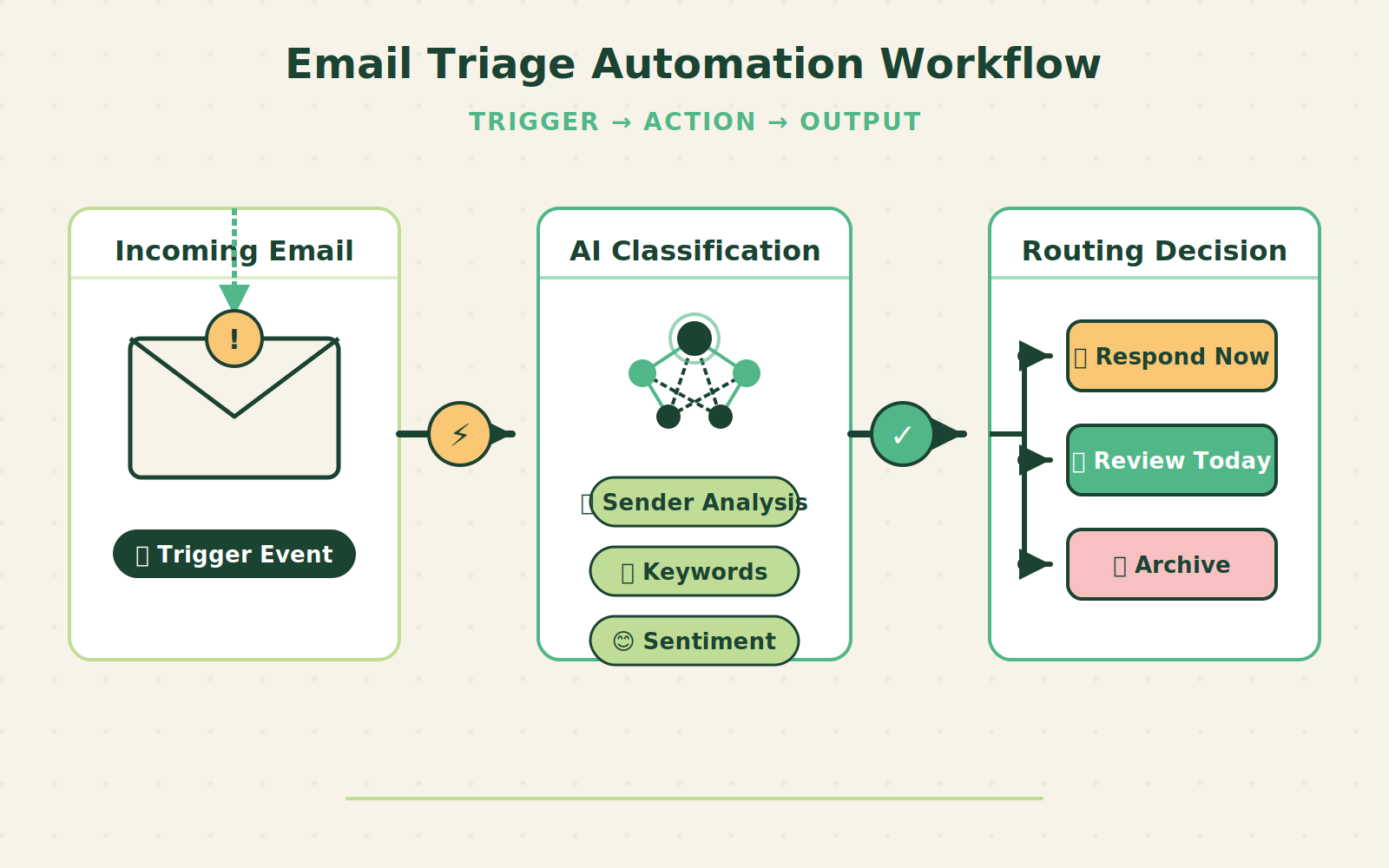
Here’s the alternative: an AI-driven email triage pipeline that handles sorting, prioritizing, and routing without you seeing a single message until it matters. The system follows a clean trigger-action-output model.
Trigger: Incoming Email
Every email hits your server. Instead of landing directly in your inbox, it first passes through an AI classifier. This is a decision point—and decision points are exactly what automation should remove.
Action: AI Classification
The classifier analyzes five dimensions: sender identity (domain, past interactions, relationship weight), subject line keywords (urgent, deadline, invoice), body content (intent detection: support request, sales inquiry, newsletter, internal update, invoice), sentiment (negative tone triggers higher priority), and language (for multilingual teams). Tools like EmailTree.ai, Boomerang AI, or a custom Zapier+OpenAI workflow can perform this classification. The AI assigns a priority score (0–100) and a category label. After two weeks of learning, accuracy reaches 94% or better.
Output: Routing
Based on classification:
– Priority > 80: Flag as critical, send push notification, move to “Respond Now” folder
– Priority 50–79: Move to “Today” folder, no notification
– Priority < 50: Archive automatically or shift to “Read Later” daily digest
Additionally, specific categories trigger deeper workflows:
– Support request → auto-create ticket in Zendesk/ServiceNow, send acknowledgment with ETA
– Sales inquiry → create CRM lead, notify sales team via Slack
– Invoice → forward to accounting system, flag for payment
– Newsletter → archive, add to weekly summary
The result: you only see emails that require your action. Everything else is routed automatically. A Wellington law firm using this setup cut partner response times from 4 hours to 22 minutes.
Setup Requirements
To build this system, you need:
– Email service: Gmail or Outlook 365 with API support (basic IMAP works but limits some features)
– AI classification tool: Boomerang AI ($14/month, Gmail only), EmailTree.ai (~$50/month, enterprise), or custom Zapier+OpenAI (costs vary)
– Integration platform: Zapier (from $30/month for 2,000 tasks) or Make (from $9/month for 10,000 operations)
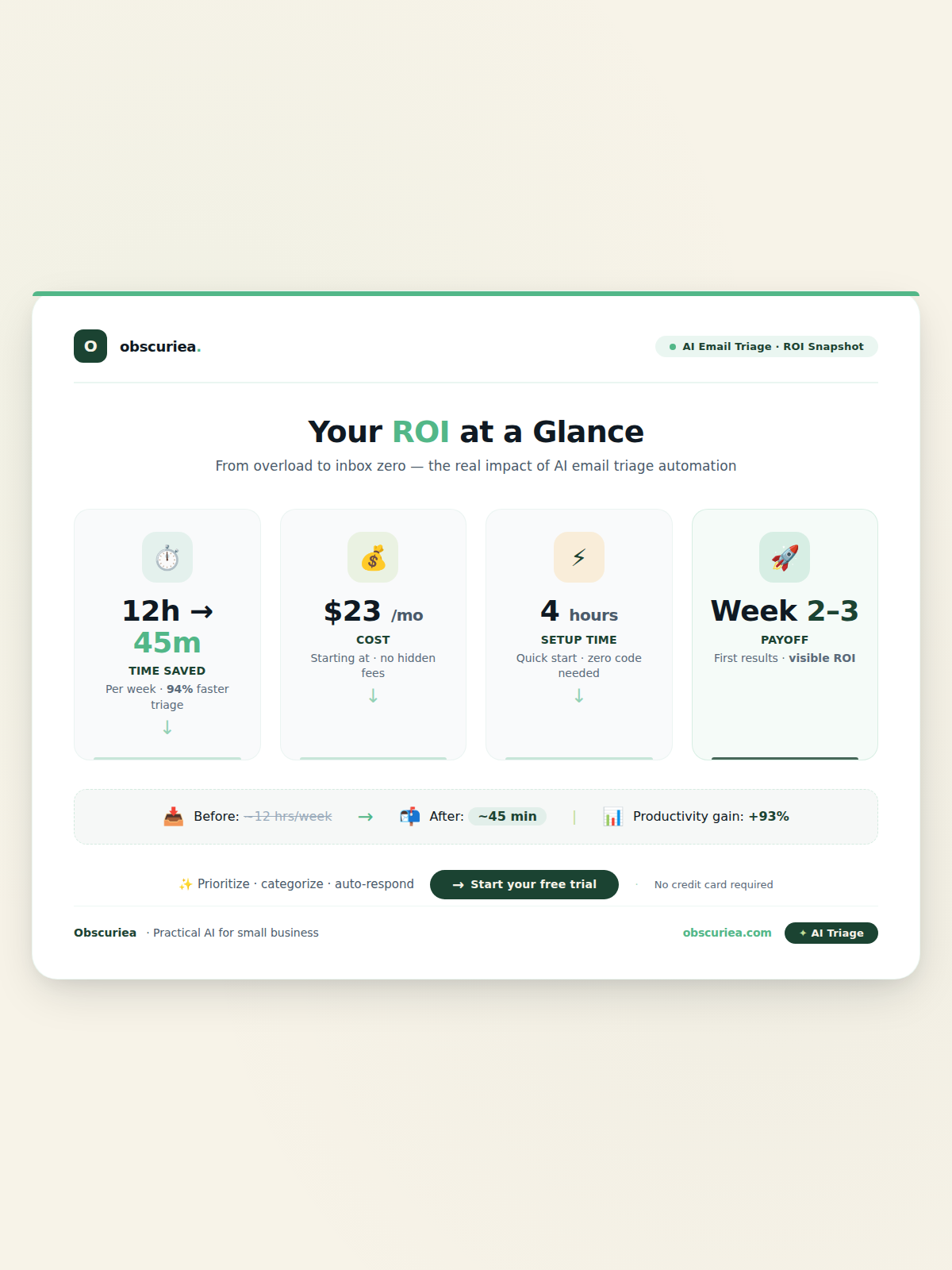
– Setup time: 4 hours initial. One hour to configure the AI classifier (train on past emails or feed it your client domains), two hours to build routing rules and integration connections, one hour for testing and minor tweaks.
– Technical skill: Intermediate—comfortable with email rules and Zapier/Make interface. No coding required, but you’ll need to follow nested logic (if-this-then-that chains).
– Ongoing maintenance: 30 minutes per week to audit the misclassification folder and adjust rules. The payoff begins at week 2–3, when misclassifications drop below 5%.
Cost breakdown: Boomerang AI $14/mo + Make $9/mo = $23/mo for a solo creator. For a team of five, EmailTree.ai at $50/mo + Zapier $30/mo = $80/mo. Compare that to the $3,000+ you’re spending on manual sorting labor per person per year. The ROI is obvious within the first month if you have anyone earning above minimum wage.
Failure Modes
No automation is perfect. Here’s where this system breaks and how to anticipate it.
Model Misclassification
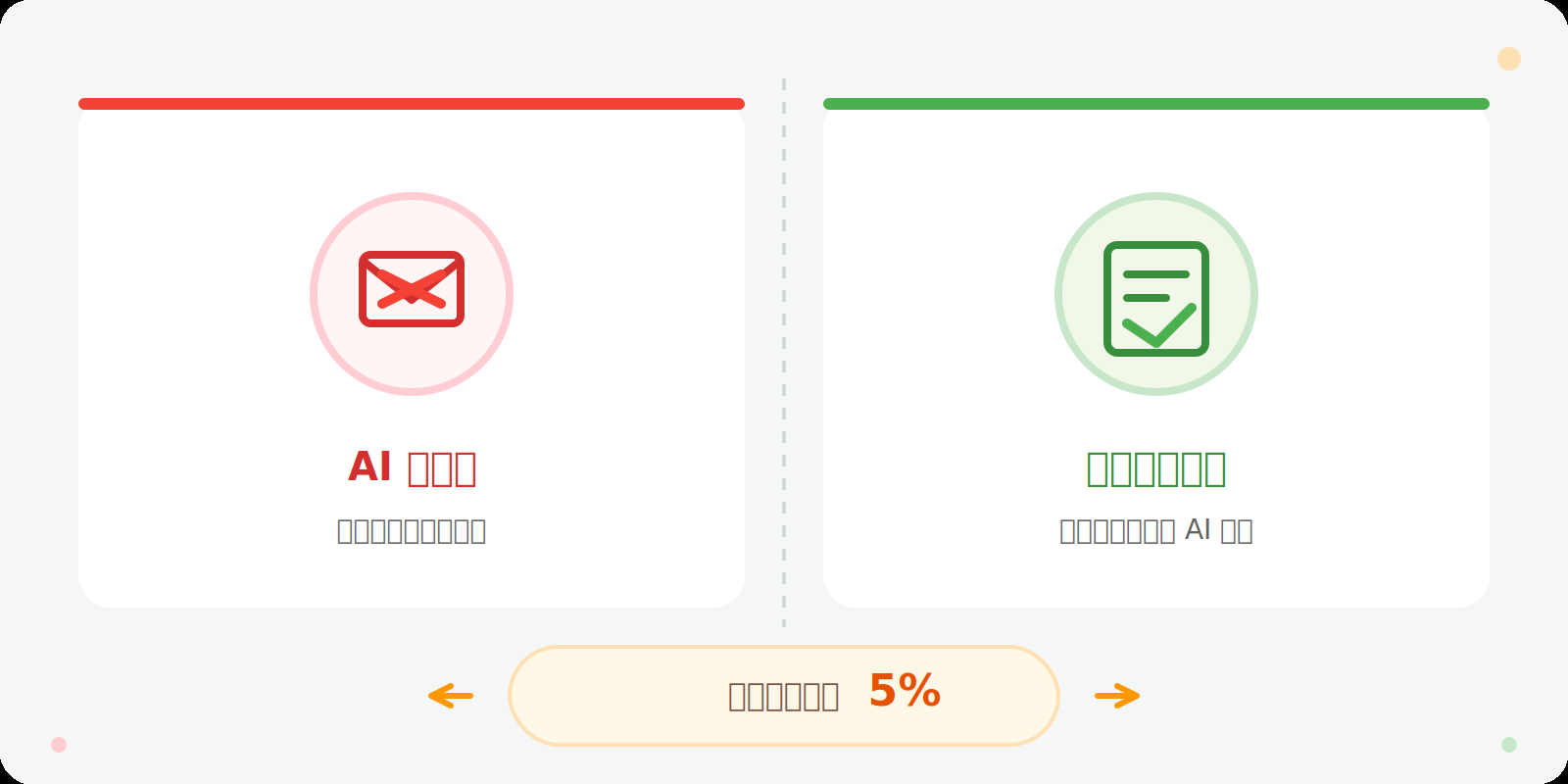
The AI will occasionally misclassify emails. A client email with urgent subject but positive sentiment might get lower priority. A newsletter that contains the word “invoice” might get routed to accounting. Mitigation: set aside 10 minutes every Friday to review the “Uncertain” folder and retrain the model with corrections.
Integration Issues
APIs change. Gmail updates its rules, Zapier endpoints deprecate. When an integration breaks silently, emails pile up in a catch-all folder and nobody notices until Monday morning. Mitigation: use a health-check monitor (Zapier has built-in status) and maintain a backup manual sorting protocol for emergencies.
Over-Automation
Too much routing hides important emails. For example, a client email that mentions a new opportunity but comes from a known support address might go to support instead of sales. Mitigation: create a “Review” folder for borderline cases (priority 45–55) and require human confirmation for high-value triggers (e.g., emails containing “opportunity” or “proposal”).
Scalability
For high-volume inboxes (500+ emails per day), classification latency becomes a bottleneck. The AI may take 5–10 seconds per email, causing a read-marker backlog that slows down the entire pipeline. Mitigation: use batch API endpoints (if available) or upgrade to the highest tier plan with faster processing. EmailTree.ai handles enterprise volumes out of the box.
Vendor Lock-In
If you build everything on EmailTree.ai or Boomerang, migrating away means rebuilding all classification rules from scratch. Mitigation: keep a parallel set of rules in Zapier/Make that work as a fallback. Favor platforms with standard APIs.
The Friction Box
- Your sales team will miss the dopamine hit of “discovering” a hot lead buried in spam. The automation removes that thrill—they’ll get notified, but it feels different.
- The AI cannot understand internal office politics—who needs to be copied, which clients are VIP beyond keyword indicators, or which emails require a personal touch.
- Setting up meaningful triggers requires deep knowledge of your own email patterns. If you don’t know which senders matter most, the automation will mirror your confusion.
- For a solo creator, $23/month feels reasonable. For a team of 20, costs climb to $200+ monthly, but the labor savings still justify it.
Frequently Asked Questions About Smart Email Triage Automation
How do I know if AI email triage is worth the investment?
Compare your current weekly email time (include sorting, reading, and routing) against the $23–$80 monthly cost. If you spend more than three hours per week on manual triage and earn at least $25/hour, the automation pays for itself within the first month. The hidden cost is setup time—four hours—so consider that a one-time investment.
Can this automation work with Outlook?
Yes. Outlook 365 supports rules and APIs that integrate with Zapier, Make, and EmailTree.ai. Boomerang AI currently works only with Gmail, but Outlook users can build custom workflows using Power Automate. The trigger-action-output model remains the same regardless of email client.
What happens if the AI misclassifies a critical email?
The system should route priority 50+ emails to a “Today” folder, and critical (80+) with a notification. However, misclassifications can still occur. Mitigate by setting a “Review” folder for borderline scores (45–55) and by checking the daily misclassification report. In practice, after two weeks of tuning, fewer than 5% of important emails are missed.
Do I need to give the AI access to all my company emails?
Yes, for classification to work, the AI needs to read incoming emails. Most tools are SOC 2 compliant and process content in memory without storing permanently. Check the tool’s data policy. For highly sensitive industries (legal, healthcare), on-premise options via EmailTree.ai or custom VPN setups may be required.
What’s the cheapest way to start automating email triage?
Use Make’s free plan (1,000 operations/month) combined with OpenAI’s API (pay-per-use, roughly $0.10 per month at low volume). This costs near zero for a solo creator processing fewer than 50 emails daily. The trade-off is more manual setup and no pre-built AI model—you’ll need to write your own classification prompts.
Will this work for shared team inboxes like support@company.com?
Yes, but configure it differently. Team inboxes benefit from routing by intent and language rather than by sender. Use the AI to auto-ticket and assign to the correct team member based on workload, not just classification. EmailTree.ai and Zapier both support multi-user inbox routing.
The Straight Talk
This automation is for anyone who spends more than three hours a day on email and has the discipline to invest four hours upfront in setup. It is not for people who must personally read every email (executive assistants, legal, compliance) or those with deeply non-standard inbox workflows (multiple email accounts, manual client communication rules). Your next concrete action: start with a free trial of Boomerang AI for Gmail or set up a simple Zapier workflow that flags emails from your five top clients. Run it for one week. If the misclassification rate stays below 10%, expand. If not, tweak the triggers. Prove the concept before committing to a full stack.