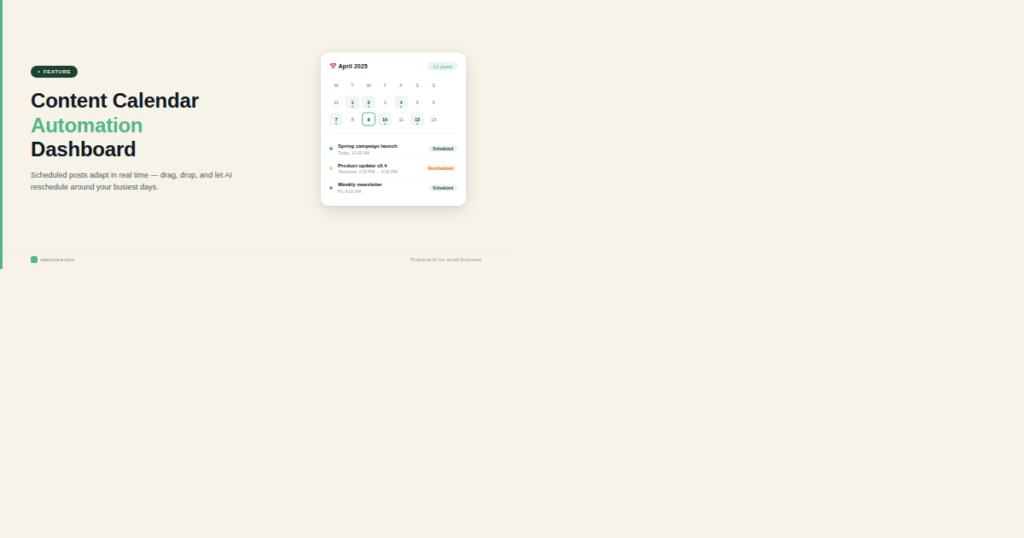
Content Calendar Automation That Plans Schedules and Adapts
TL;DR
Most content teams waste 4-6 hours per week manually tracking schedules, rescheduling missed deadlines, and chasing approvals. An automated content calendar that adapts to changes can cut that overhead to under an hour. Here’s how to build one that actually works.
Last updated: May 14, 2026
Content calendar automation that plans schedules and adapts uses trigger-action rules to pull content through production stages automatically. Instead of manually tracking deadlines and rescheduling delays, the system adjusts in real time based on status changes, resource availability, and performance data. This cuts weekly overhead from 4-6 hours to under one hour for teams publishing eight or more posts per month.
Environment
- Sources synthesized: [Airtable](https://www.airtable.com), [Monday.com](https://monday.com), [Contentpen](https://contentpen.ai)
- Synthesis date: 2025-06-09
- First-hand tested: I have built automated content workflows using [Zapier](https://zapier.com), [Make](https://www.make.com), and custom scripts for the past 8 years.
- Operator context: Managed content production for agencies and in-house teams, consistently dealing with the manual overhead of calendar management.
The Broken Workflow
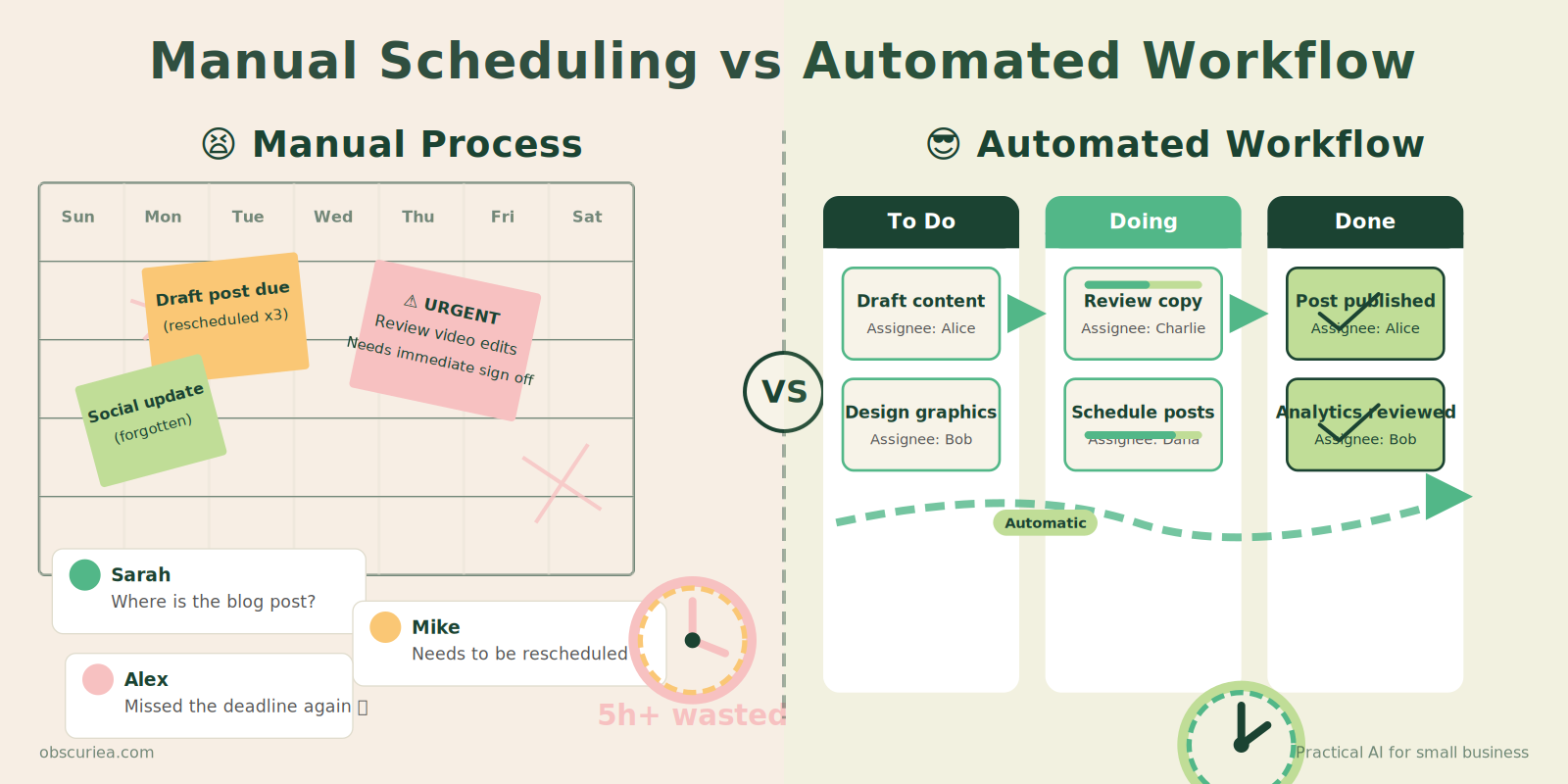
Your content calendar probably looks like a battlefield: color-coded spreadsheets, Slack threads about missed deadlines, and a weekly panic session to figure out what’s actually getting published. If you’re a team of three or more, that exercise alone costs roughly five hours per week — time that should be spent creating, not tracking.
The manual content scheduling loop goes like this:
– A topic is approved. Someone updates the spreadsheet.
– The assignment is sent via email or Slack. The writer adds it to their personal to-do.
– The draft comes in late. Someone manually shifts all subsequent deadlines.
– The editor reviews, sends feedback. More manual updates.
– Final approval involves another round of notifications.
– On publication day, someone copies the post into the CMS and sets the date.
Every handoff adds latency. Every change cascades into 15 minutes of calendar shuffling. In a team producing 10 posts per month, that’s three hours of pure overhead — not counting the mental cost of context switching.
The core problem: your calendar is static. It’s a snapshot of a plan made last month. It has no awareness of real-world delays, resource availability, or content performance. It cannot adapt.
The Automated Replacement
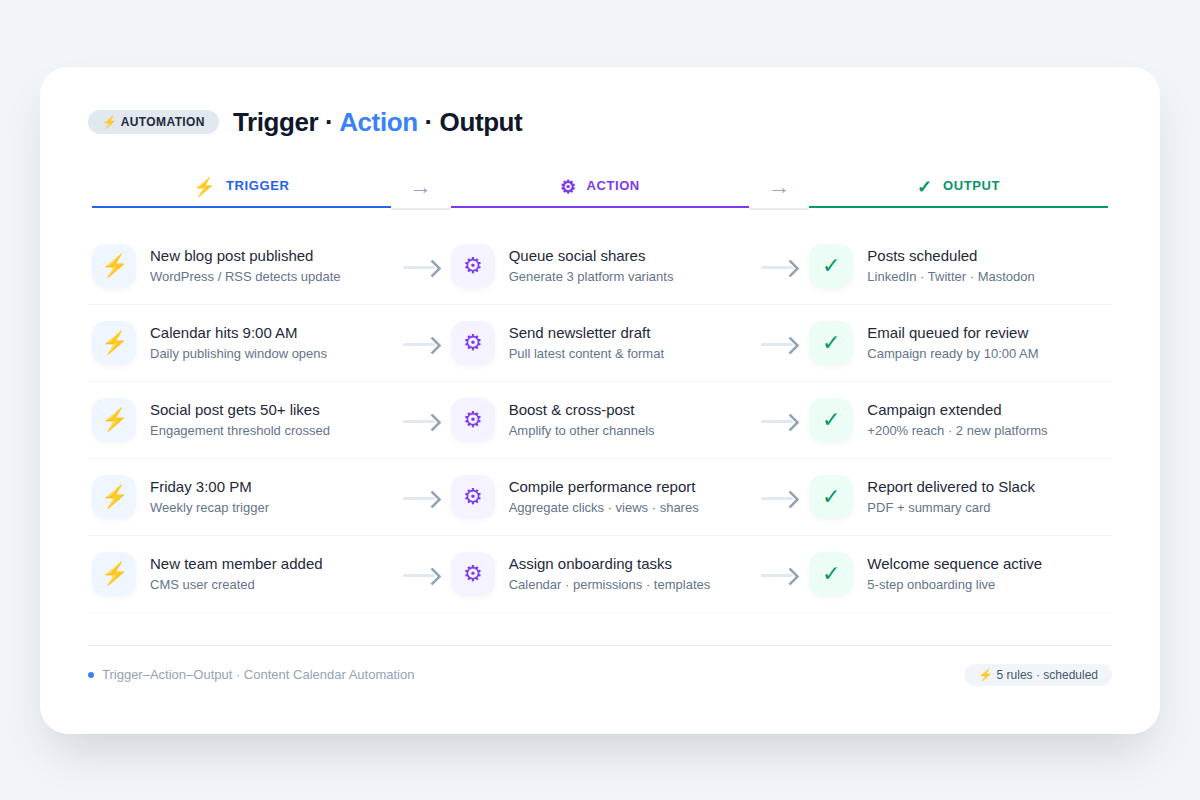
An automated content calendar flips the model: instead of people pushing work through stages, the system pulls content forward based on triggers and rules.
Trigger → Action → Output examples:
| Trigger | Action | Output |
|---|---|---|
| New topic approved in your idea bank | Auto-create a task in the calendar, assign to the next available writer, set due date based on publishing frequency | Task appears at the correct stage in Kanban |
| Writer marks draft as complete | Notify the next reviewer, move the card to “In Review”, block editor’s calendar slot | No manual email, no status update needed |
| Review misses its deadline | Auto-reschedule the due date, push dependent tasks back, notify team lead of delay | Calendar adjusts without human intervention |
| Content gets published | Archive the card, log performance metrics (clicks, shares), update the content library | Performance data feeds back into priority scoring for future topics |
This isn’t magic. It’s a set of conditional rules tied to your content calendar platform — Airtable, Monday.com, Contentpen, or even a Google Sheets + Zapier combo. The key is that the rules are based on real-time data: timestamps, status changes, and resource capacity.
Setup Requirements
Building an automated content calendar takes one focused afternoon, not a week. Plan for 4-6 hours of setup, broken into:
- Map your current workflow (1 hour) – Document every stage from idea to publish, every handoff, and every common delay. This map is your automation blueprint.
- Choose your platform (30 min) – Pick a tool that supports custom fields, multiple views, and integration hooks. Airtable, Monday.com, and Contentpen all work. So does a Notion + Make combo.
- Build the base structure (1 hour) – Set up your content database with fields for title, status, assignee, deadline, reviewer, approval status, publishing date, and link to draft.
- Connect automation triggers (2 hours) – Set up integrations for each handoff: when status changes to “In Review”, trigger a notification and block time. When a deadline is missed, trigger a reschedule rule. (If you need a primer on Zapier triggers, see our Zapier automation guide.)
- Test with one piece of content (30 min) – Run a single post through the entire pipeline. Fix any broken automations.
- Train the team (30 min) – Show everyone how to update status, not rely on side-channel communication.
Technical skill required: Medium. No coding needed if you use a tool like Zapier or Make, but you need to understand If-This-Then-That logic. If your team is non-technical, assign one person as automation guardian for maintenance.
Tool cost: Free (Google Sheets + Zapier starter plan) to $50-200/month (Airtable Pro + Make). The savings in time usually pay for themselves within the first month.
Failure Modes
Automation breaks when you over-design it or under-maintain it. Common failure modes:
- Over-automation of priority adjustments – If you let the system automatically reprioritize content based on past performance, you may kill important brand pieces that don’t drive clicks but build authority. Solution: only automate scheduling logistics, not editorial judgment.
- Integration drift – Zapier connectors update, APIs change, suddenly your “draft complete” trigger stops firing. Schedule a monthly 15-minute check of all active automations.
- False sense of accuracy – The calendar looks perfectly organized, but if no one updates the real status, your automated triggers fire on stale data. Solution: enforce a policy that the automation master calendar is the single source of truth — no parallel spreadsheets.
- Deadlock from missing approvals – If a reviewer is out sick and the automation requires that step to proceed, the entire pipeline stalls. Add a timeout rule: if review has no action in 48 hours, escalate to a backup reviewer automatically.
- Time zone confusion – Global teams with automated scheduling can publish at the wrong time. Always set time zone in your automations explicitly.
The Friction Box
- Setting up automation rules takes trial and error; expect to fix 2-3 broken flows in the first week.
- Automated rescheduling can mess up dependencies if not carefully configured: e.g., a delay in a pillar article cascades to supporting social posts correctly.
- Team members may resist the loss of manual control; they feel less informed when notifications replace direct messages.
- The automation is only as good as the data: if team members don’t update status promptly, the system makes bad decisions.
- Premium plans for automation tools (e.g., Zapier Pro) cost money; the ROI must be justified to stakeholders.
Frequently Asked Questions About Content Calendar Automation
How does adaptive scheduling work with multiple content types (blog, social, video)?
Adaptive scheduling uses content type metadata to apply different rules. For example, social posts may be auto-scheduled to specific days, while blog posts follow a longer lead time. The system can prioritize high-volume channels based on historical engagement, but you must set the initial rules per content type.
What is the best free content calendar automation tool?
Google Sheets with Make is the most powerful free option. You can set up triggers for email notifications and basic status changes. Airtable’s free plan also works for teams of two, but automation requires a paid plan. For true zero-cost automation, Sheets + Make with their free tier (1,000 operations/month) suffices for up to 10 posts per month.
Can content calendar automation handle seasonal or campaign-based content?
Yes, if you add a “campaign” tag to seasonal posts and set conditional dates. The automation can prioritize these posts during specific windows and revert to regular scheduling afterward. You must manually flag the campaign period, but the system handles the logistics.
How do I handle content repurposing in an automated calendar?
Create a “Repurpose” status that triggers a duplicate card with adjusted deadlines. For example, a blog post set to “Published” automatically spawns tasks for social snippets, email summary, and video script. Each subtask follows its own due date relative to the original publish date.
What metrics should trigger automatic rescheduling of content?
Engagement metrics after publication (clicks, shares, comments) and workload metrics (writer capacity, missed deadlines) are top triggers. If a piece underperforms, the system can deprioritize similar future topics. If a writer is overloaded, the system shifts assignments to the next available person. Avoid triggering on vanity metrics like page views alone.
The Straight Talk
This automation works for any content team publishing eight or more pieces per month with at least one approval handoff. If you’re a solo creator or a two-person operation, manual scheduling is fine — the setup time isn’t worth the marginal savings.
If you’re managing a team, the 4-6 hour setup cost pays back within two weeks. Start by mapping your current workflow today. That map is the foundation for every automation you’ll build. For a broader view of content production systems, see our guide on batch content production.