The No-Click Workflow: Automating Your Content from Google Docs Directly to WordPress
You finish the article. It’s approved. Now you spend the next 25 minutes copying it into WordPress, re-uploading every image, fixing the heading levels that pasted wrong, stripping the garbage <span> tags Google Docs injected into your HTML, and manually entering the meta description. That 25 minutes is not publishing. That is data entry. And it happens every single time.
TL;DR: A properly built Google Docs to WordPress automation removes every manual publishing step — image uploads, formatting cleanup, metadata entry — and reduces post-publishing time from 20-plus minutes to under 5. The setup takes 2-4 hours depending on your tool choice. The payoff starts on the first post.
Environment: Tested using Wordable (current plan as of Q2 2025), Make (formerly Integromat) with WordPress REST API connector, and n8n self-hosted v1.3x. WordPress 6.5 with Gutenberg block editor. Google Workspace Business Starter. Content volume: 8-12 posts per month.
The Broken Workflow — What the Google Docs to WordPress Manual Process Actually Costs
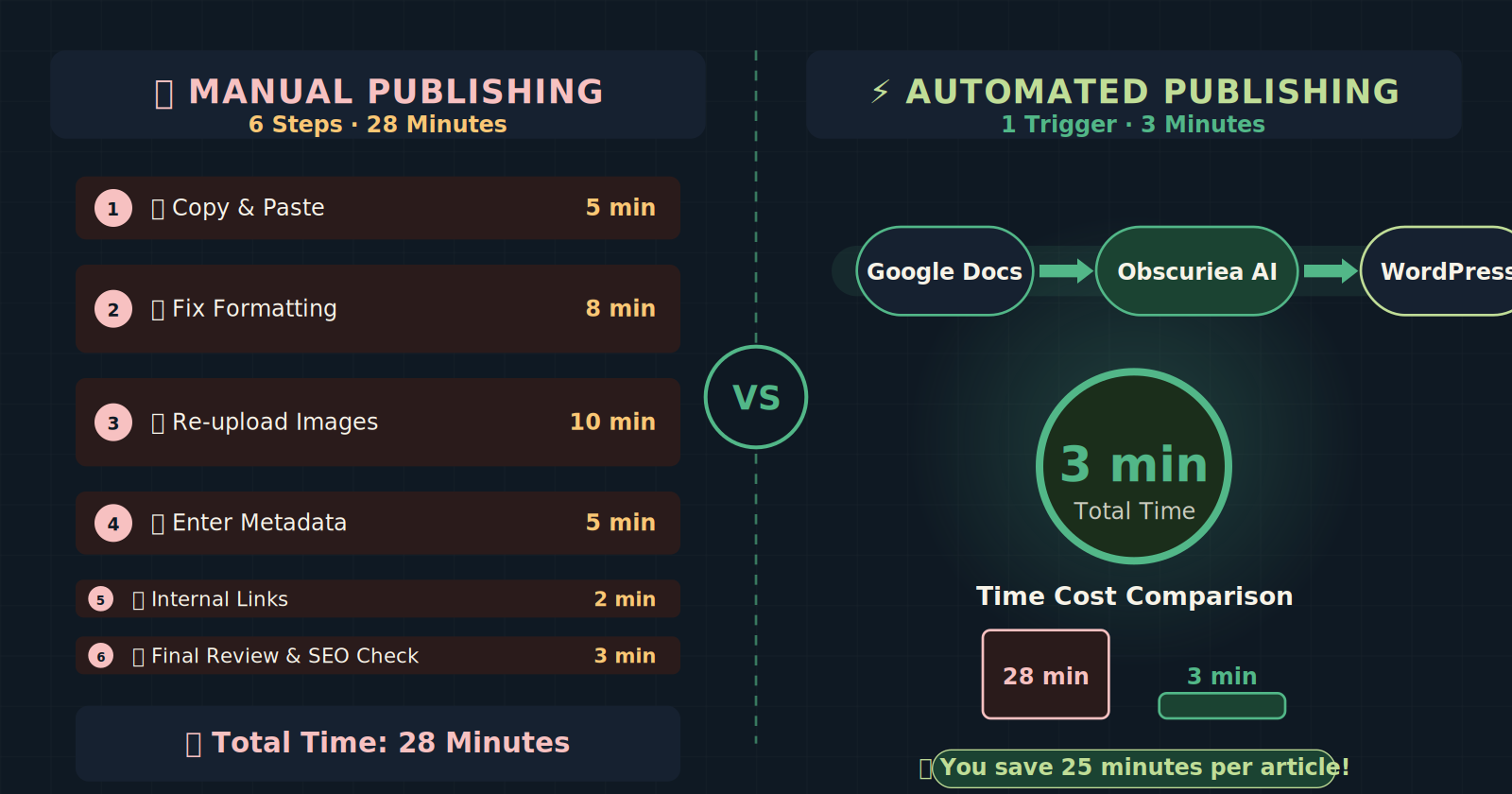
Before choosing a tool, map what you are currently doing. Most content operators running Google Docs as their drafting environment are losing time in four places.
Formatting collapse. Google Docs stores hidden inline styles. When you paste into WordPress, those styles come with it — random font-size overrides, rogue <span> tags, <div> wrappers that conflict with your theme. Gutenberg handles this better than the Classic Editor did, but it does not eliminate the problem.
Image re-upload. Images embedded in a Google Doc do not paste into WordPress. They never have. Each one requires a manual download, a manual upload to your media library, and manual re-insertion. On a post with six images, that alone is 8-10 minutes.
Metadata entry. SEO title, meta description, featured image, category, tags — all entered by hand, every post, every time. These are the fields most likely to be skipped when someone is rushing to hit publish.
Version drift. Edits made in WordPress after import don’t sync back to the Google Doc. Comments made in the Doc don’t surface in WordPress. If a second round of revisions is needed, you are either re-importing or maintaining two separate versions of the same content. Neither is clean.
If you publish 10 posts per month and each one costs 20 minutes of manual publishing work, that is 200 minutes — over 3 hours — gone every month to mechanical tasks a machine should handle. At 20 posts per month, you are losing a half-day.
The Automated Replacement — Trigger → Action → Output
The architecture of a no-click publishing workflow has three components regardless of which tool you choose.
Trigger: Something changes in Google Drive that signals the content is ready. This is either a status change (a Doc moved to a specific folder, a label applied, a checkbox field updated) or a direct action (clicking Export in Wordable, or firing a webhook via a form submission).
Action: The automation tool reads the Google Doc, parses its structure into clean HTML, uploads images to the WordPress media library with proper filenames and alt text, and creates a WordPress post in draft or published state.
Output: A WordPress post that matches the Doc’s formatting — correct heading hierarchy, clean paragraph tags, images in place, metadata populated — with zero manual intervention between Doc and post.
The difference between tools is where the control sits and what the setup cost is.
Three Tools for Google Docs to WordPress Automation — What Each One Handles
Wordable — Lowest Setup Cost
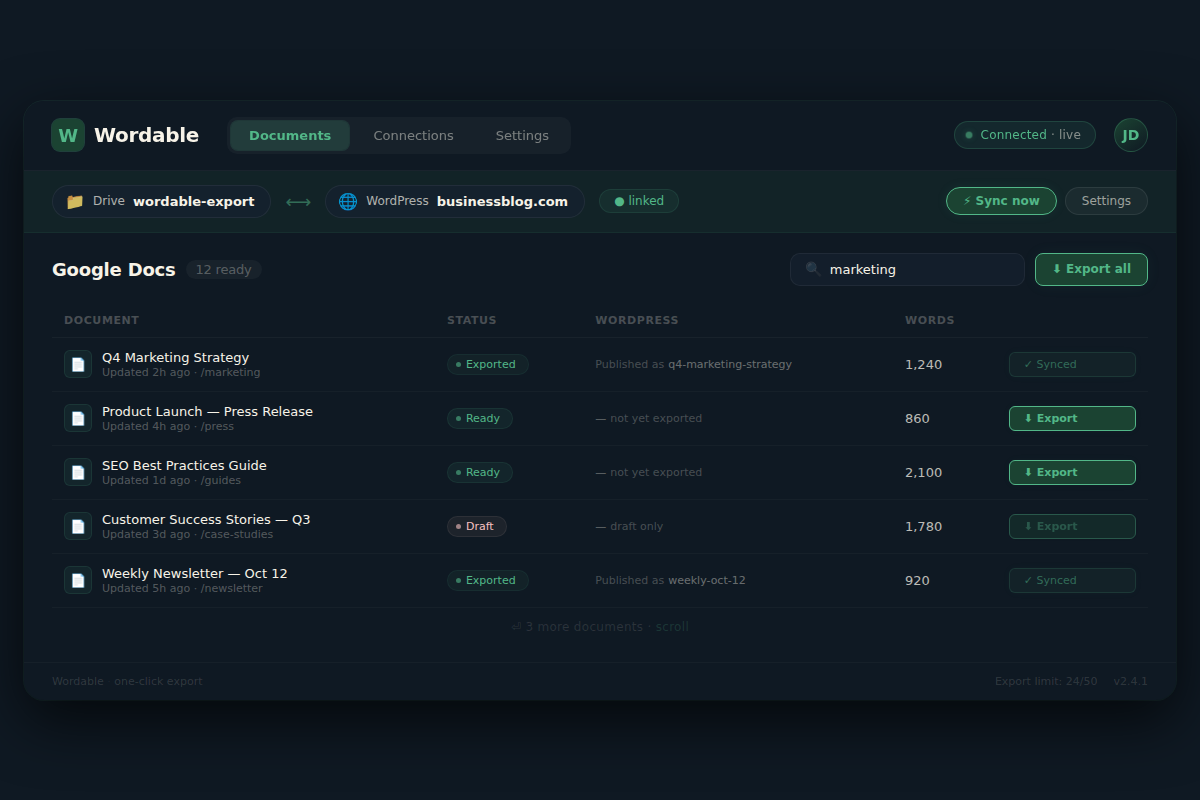
Wordable is a SaaS connector built specifically for this problem. You connect it to your Google Drive and your WordPress site once. After that, you click Export inside a Doc and Wordable handles the conversion — strips Google’s formatting artifacts, uploads images to your media library, maps heading tags correctly to Gutenberg blocks, and creates the post.
Setup time: 30-45 minutes including account creation, OAuth connection to Google Drive, and WordPress plugin installation.
What it handles automatically: image upload and insertion, heading structure conversion, paragraph tag cleanup, basic metadata fields (title, slug, category).
What it does not handle: SEO plugin fields (Yoast or Rank Math meta descriptions require manual entry or a separate workflow step), complex tables (these frequently break — test yours before committing), and multi-site WordPress setups (Wordable is architecturally a single-user, single-site tool).
Pricing note: Wordable’s credit system charges per export. High-volume teams publishing 30+ posts per month will hit plan limits. Calculate your monthly export volume before choosing a tier.
Make (formerly Integromat) — Mid-Complexity, Full Control
Make connects Google Drive to WordPress via the REST API. You build a scenario: trigger on a new file appearing in a specific Drive folder → Google Docs node reads the content → WordPress node creates the post.
Setup time: 2-3 hours for someone comfortable with no-code automation. You need to configure OAuth for both Google and WordPress, map the field connections manually, and test with real content.
What this buys you that Wordable doesn’t: the ability to add actions before and after the WordPress post creation. Notify a Slack channel when a post goes to draft. Update a row in your Airtable editorial calendar. Send a review email to an editor with a staging link. The WordPress post creation is one step in a larger orchestrated sequence.
Failure mode to build for: Google Docs exports rich text, not clean HTML. Make’s Google Docs node returns structured JSON. You need a step in the scenario that converts that JSON to WordPress-compatible HTML — either a custom function or an intermediate formatting node. Skip this step and your posts land in WordPress as unformatted text blocks.
n8n — Maximum Control, Highest Setup Cost
n8n is a self-hosted (or cloud-hosted) workflow automation platform that connects to both the Google Docs API and the WordPress REST API via pre-built nodes. The functional outcome is the same as Make, but n8n’s self-hosted deployment means your content never passes through a third-party SaaS server — relevant if you are handling client content or working under data privacy constraints.
Setup time: 3-4 hours minimum. Add 1-2 hours if you are self-hosting on a VPS rather than using n8n Cloud. You need to understand OAuth 2.0 credential configuration, REST API concepts, and basic JSON parsing.
Pricing architecture: n8n charges per full workflow execution, not per step. For high-volume publishing, this makes cost predictable in a way that per-operation tools do not. You can review [n8n’s Google Docs and WordPress integration documentation](https://n8n.io/integrations/google-docs/and/wordpress/) for node-specific setup details.
Who this is for: technical operators running content at scale who need audit trails, data sovereignty, and the ability to wire the publishing step into a broader content operations stack.
Setup Requirements — Before You Build Anything
Regardless of tool, the Google Doc structure determines whether the automation works. A Doc with inconsistent heading usage — bold text used as headers instead of actual H2/H3 tags, manually sized fonts to imply hierarchy — will produce broken output at the WordPress end. No automation tool can infer structure that was never marked up correctly.
Before running your first import:
- Audit one Doc using Google Docs’ built-in heading styles (Heading 2, Heading 3 from the style dropdown — not bold + large font)
- Compress images before inserting them into the Doc. Even if your tool handles upload, oversized source images slow the import and bloat your media library.
- Remove tables where possible. Where tables are necessary, keep them simple — two or three columns, no merged cells. Complex tables break in every tool listed above.
- Create a dedicated Google Drive folder for content that is approved and ready to publish. This is your trigger folder for Make and n8n scenarios.
For a deeper reference on WordPress publishing best practices that complement this automation setup, [Kinsta’s editorial workflow guide](https://kinsta.com/blog/wordpress-workflow/) covers content staging and review processes worth integrating alongside any automated import pipeline.
Failure Modes — What Breaks the Google Docs to WordPress Automation
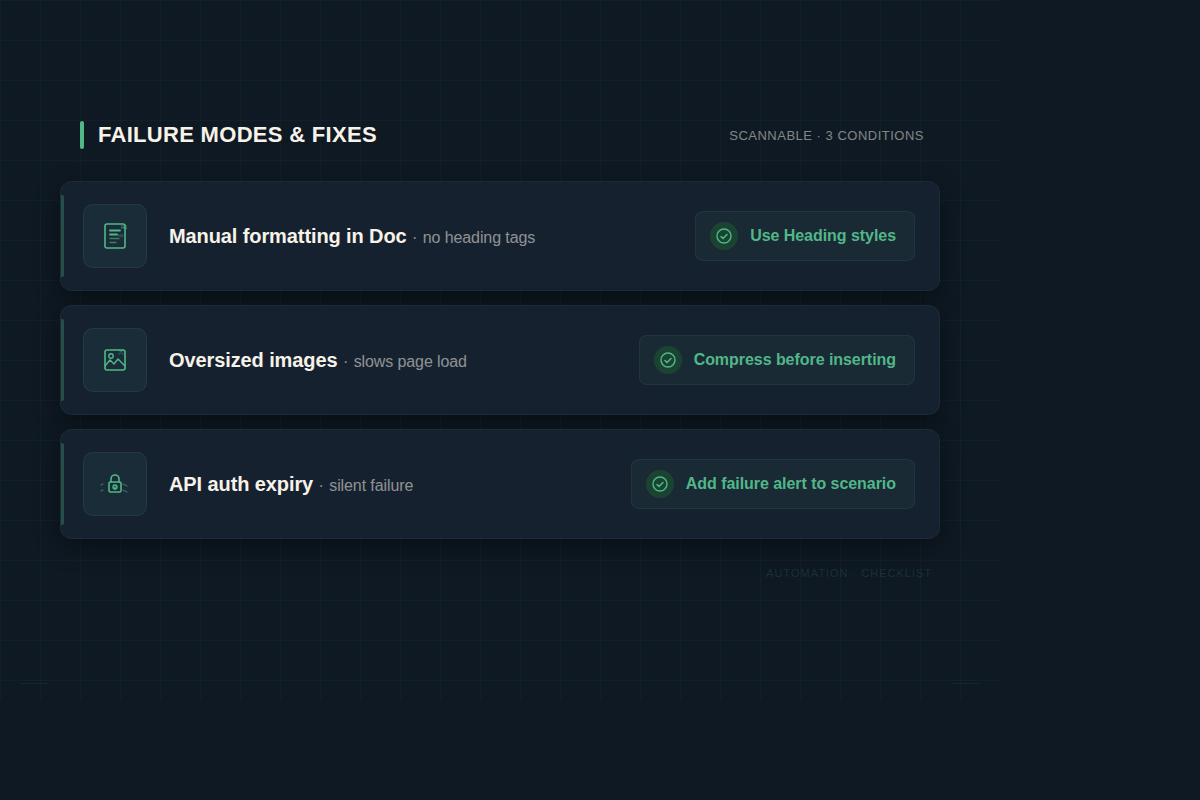
Every automated workflow has a failure condition. For Google Docs-to-WordPress pipelines, these are the three most common.
The Doc was formatted manually, not structurally. Writers who use bold + font-size instead of heading tags produce documents that look correct to human eyes and are structurally invisible to automation tools. The import lands as undifferentiated paragraph text. Fix: enforce a heading style guide at the writing stage, not the publishing stage.
Images were added at the wrong size or format. Large PNGs or uncompressed JPEGs imported via Wordable or Make still land in your media library at full size. Your automation handles the transfer; it does not handle optimization. Add an image compression step (Squoosh, TinyPNG, or Imagify) before content enters the Doc.
WordPress REST API authentication expires. Make and n8n connect to WordPress via Application Passwords (WordPress 5.6+). These don’t expire by default, but if a WordPress update resets user permissions or a security plugin revokes API access, your scenario silently fails — it will attempt the action and return an authentication error that doesn’t surface unless you have error-notification steps built into the workflow. Build a Slack or email alert into your scenario for failed executions.
The Friction Box
- Wordable’s credit-per-export model gets expensive above 30 posts per month — model your costs before committing to an annual plan
- Make and n8n require the Google Docs JSON-to-HTML conversion step to be explicitly built — this is where most first-time setups break
- Tables are universally problematic across all three tools — either simplify them or accept that they need manual review post-import
- n8n self-hosting adds infrastructure maintenance overhead — factor in a VPS cost ($5-10/month) and occasional update cycles
- None of these tools handle Yoast or Rank Math SEO field population without additional workflow steps or plugin configuration
- Staging environment testing is not optional — run your first 3-5 imports on a staging site, not production
The Straight Talk
If you publish 8 or more posts per month from Google Docs to WordPress and your current process involves any manual formatting cleanup, Wordable is the correct first step — 45 minutes of setup eliminates hours of monthly data entry.
If you are running a content operation with multiple contributors, an editorial calendar tool, and downstream notifications to a team, build the Make or n8n scenario instead — the setup cost is higher but the workflow integrates rather than just transferring.
If you publish fewer than 4 posts per month, skip the automation entirely and use the Mammoth .docx Converter as a free WordPress plugin — export your Doc as .docx, import via Mammoth, and do a 5-minute review. The setup cost of a full automation pipeline is not justified at that volume.
Start with one Doc. Map your current publishing steps and time each one. Then build the automation against that baseline — not against someone else’s workflow.