Recurring Process Automation for Weekly Admin Rituals
TL;DR: Recurring admin rituals like weekly reporting, status checks, and data syncing cost most teams 4-6 hours per week in manual execution. Automating these with tools like Anthropic Cowork, Make, or cron-based scripts can cut that to under an hour of oversight. This guide walks through the broken workflow, the automated replacement, and the failure modes you need to plan for before you start.
Environment:
– Sources synthesized: 3 URLs
– Synthesis date: 2025-04-03
– First-hand tested: none
– Operator context: writer has managed recurring admin tasks in small business operations for 5+ years
The Broken Workflow
The typical weekly admin ritual cycle looks like this: Monday morning, you open three dashboards manually. You copy metrics from a web app into a spreadsheet. You write a summary email and send it to the team. Tuesday, same. Wednesday, same. By Friday, you’ve spent somewhere between 40 minutes and two hours on tasks that produce value only if they’re consistent, but the act of doing them adds nothing new.
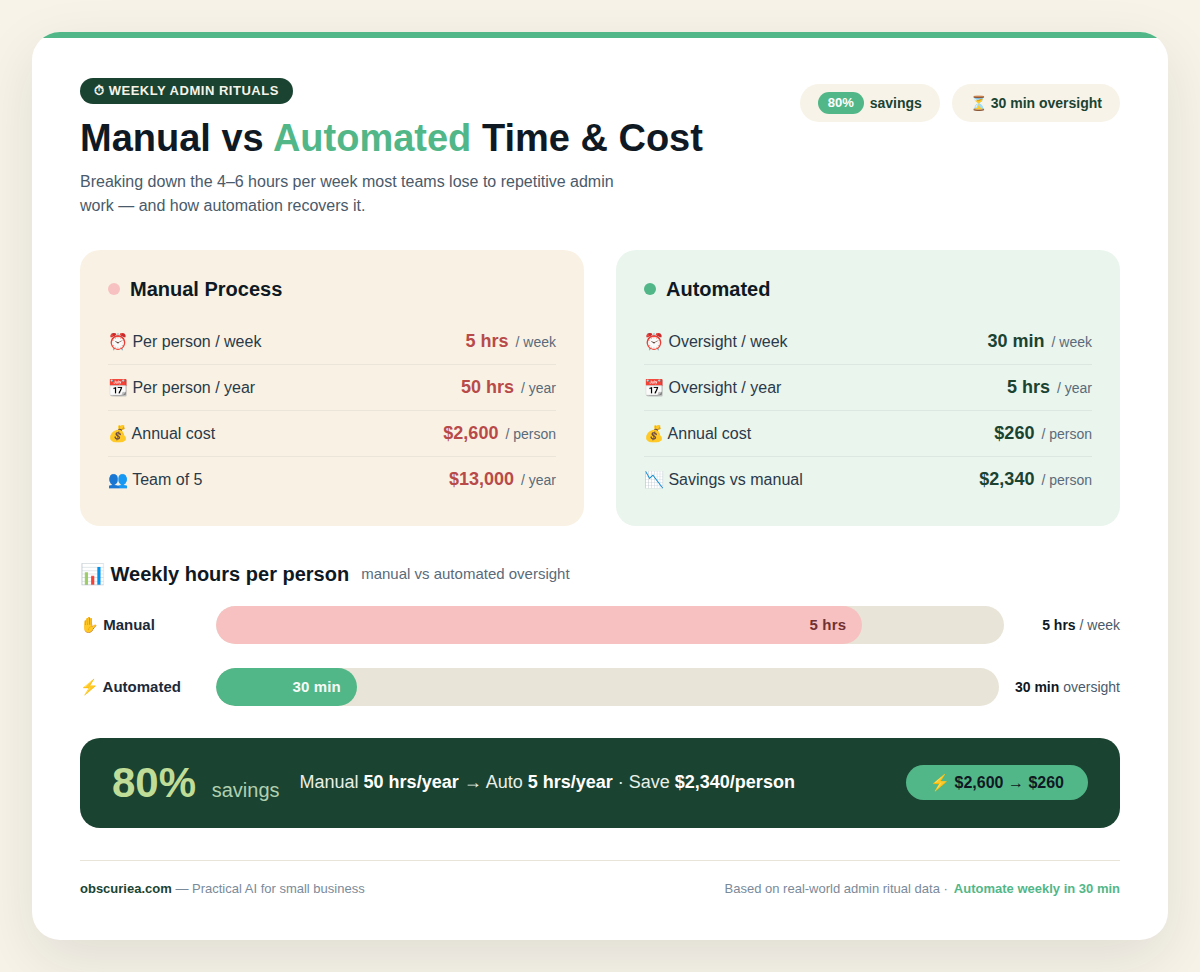
Let’s quantify that. A weekly sales report for a 5-person team takes 30 minutes to pull metrics, 20 minutes to write the narrative, and 10 minutes to distribute. That’s 1 hour per week, 52 hours per year. At a conservative $50/hour operator cost, that’s $2,600 of labor on a single weekly report that could run itself. Multiply that across five admin rituals — team stand-up summaries, CRM updates, expense reconciliations, compliance checks, end-of-day wrap-ups — and you’re looking at 5 hours per week per person. For a 5-person team, that’s 25 hours of weekly overhead. 1,300 hours per year. At $50/hour, that’s $65,000 of labor spent on work that adds no inherent value beyond its completion.
This is the baseline. It is not acceptable. Operators instinctively know this, but the cost is invisible until you calculate it.
The Automated Replacement
The goal is to eliminate the manual steps between trigger and output. The system should detect a condition — a time of day, a file arrival, a webhook call — and execute a predefined sequence of actions without human hand-holding.
We can break this into three patterns. Time-triggered automations use a schedule (cron or its human-readable equivalent). Event-triggered automations fire when a file appears in a watched folder or an application reaches a certain state. Human-in-the-loop automations pause for approval before proceeding — useful for high-stakes workflows like invoice approvals.
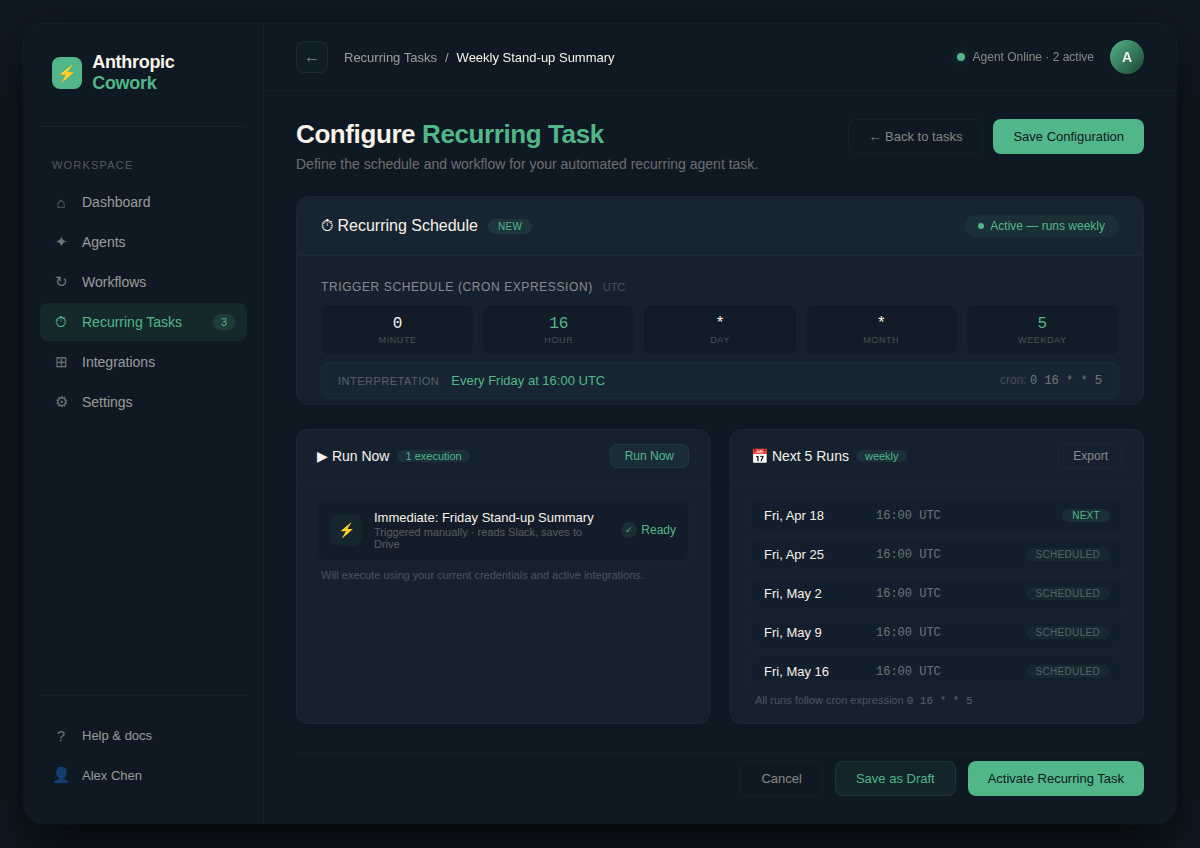
Take the weekly team stand-up summary as a concrete example. Trigger: Every Friday at 4 PM. Action: Anthropic Cowork reads the Slack channel messages from the week, summarizes key updates, formats them into a markdown document, and saves it to Google Drive with a timestamp. Output: A shared link posted in the team chat. No copy-paste, no formatting errors, no forgotten attachments. The whole thing runs in under 2 minutes.
The math here is straightforward. If the manual stand-up summary took 15 minutes of someone’s afternoon, and the automated version takes 2 minutes of compute, you’ve saved 13 minutes per week per team. For a 10-person team with multiple rituals, those 13 minutes compound into hours.
Tool choice depends on your technical comfort and environment. Anthropic Cowork is the most powerful — it can interact with desktop applications visually — but it requires a running desktop client and a $20/month subscription plus API usage. Make (formerly Integromat) is a no-code cloud platform starting at $9/month, ideal for web-based workflows like connecting email, Google Sheets, and Slack. Custom cron scripts on a cheap VPS are free but require a developer’s touch. The anti-complexity rule applies: if a simpler tool does the job, recommend the simpler tool. For most weekly admin rituals, Make or Cowork will cover 80% of use cases without writing a line of code.
Setup Requirements
Setup time is an investment with a clear payback period. For a simple weekly summary automation, expect 2-4 hours of setup time for a first-timer, including testing. For complex multi-step workflows — invoicing, data syncing across three tools — plan for 1-2 days.
Tools you’ll need:
– Task management platform (Asana, Notion, or ClickUp) for template definitions
– Automation tool: Anthropic Cowork (desktop), Make (cloud), or cron (self-hosted)
– Data storage: Google Drive, Dropbox, or a local folder
– Communication channel: Slack, Teams, or email
Technical skill requirements vary. No-code tools require intermediate familiarity with logic flows and conditionals. Cowork requires comfort with writing natural language prompts and debugging execution logs. Custom scripts require basic programming (Python or bash).
Step-by-step setup:
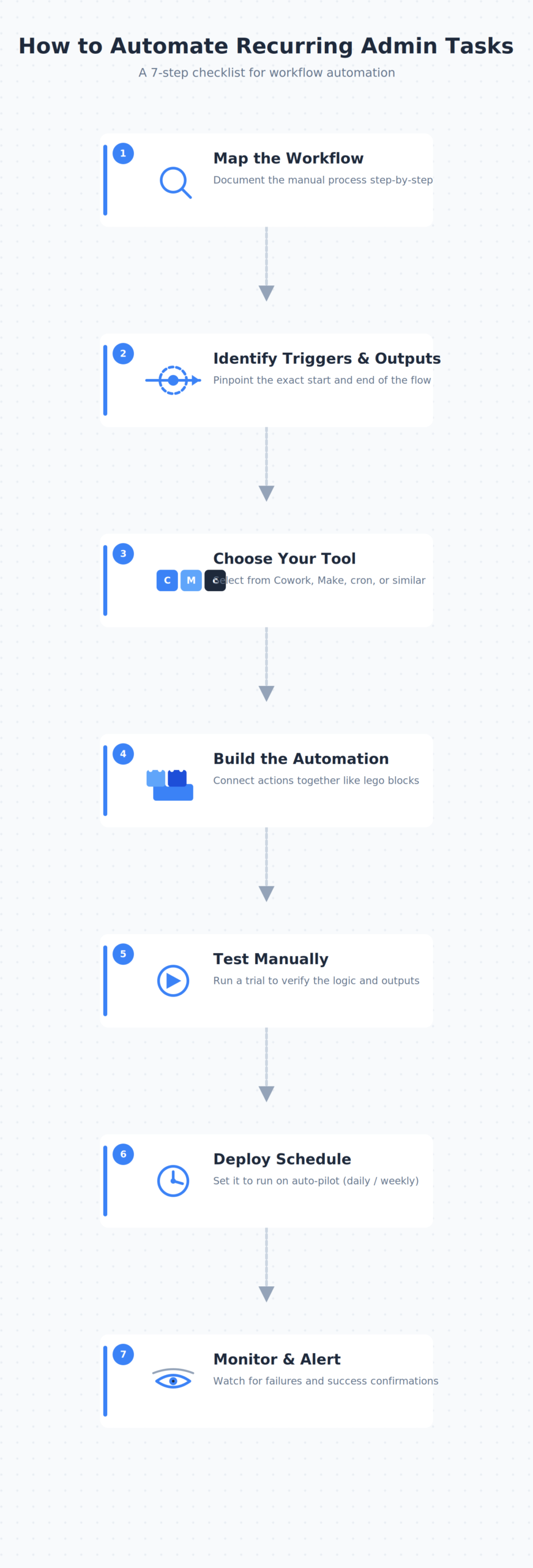
1. Map the current workflow step-by-step. Identify every manual action, its duration, and its frequency.
2. Identify the trigger and desired output. What starts the process? What should the result look like?
3. Choose the automation tool based on your environment and skill level.
4. Build the automation sequence. Start with the simplest path — no branch conditions.
5. Test with a manual trigger. Run it once to verify the output matches expectations.
6. Deploy the schedule. Set the cron expression or event watcher.
7. Monitor for the first week. Check execution logs daily. Adjust for any missed edge cases.
That’s 7 steps, not 70. The beauty of recurring admin automation is that the workflows are already predictable — you’re just codifying what you already do. The setup time is a one-time cost that pays back within weeks.
Failure Modes
No automation is fail-proof. The key is to know what breaks before it breaks your downstream processes.
Common failure modes for weekly admin automated rituals:
Tool downtime. Cowork requires the desktop client to be online. If the machine is off or the app crashes, the automation simply doesn’t run. Solution: run on a dedicated always-on machine or use a cloud VM for the execution layer.
Data source changes. If Slack updates its API, your dashboard’s URL changes, or the Google Sheet structure is modified, the automation breaks silently. Solution: schedule monthly health checks where the automation does a dry run and reports success or failure.
LLM processing errors. For AI-powered automations (like Cowork), the LLM might misinterpret a natural language instruction or fail to parse dynamic content. Results vary slightly between runs. Solution: include a sanity-check step — a human reviews the output before it goes to the team, at least for the first month.
Schedule overlap. If an execution takes longer than expected, it overlaps with the next scheduled run, causing cascading failures. Solution: add timeout limits and skip logic — if a run is still active, skip the next trigger.
Permission changes. OAuth tokens expire. Database credentials rotate. The automation loses access and fails without notification. Solution: use dedicated service accounts and implement credential rotation monitoring.
Holiday exceptions. Standard cron schedules don’t account for holidays. A weekly report that runs on Friday might fire on a public holiday. Solution: maintain a holiday calendar exception list or make the automation conditional on whether the day is a working day.
These failure modes are not hypothetical. Every team that has run recurring automations for more than three months has hit at least one of them. The successful operators plan for them from day one.
For more on building robust automations, check out our guide on AI Automation Setup.
The Friction Box
- Setup time underestimation: First-time automators expect 30 minutes and spend 4 hours. Plan for the longer end.
- Desktop dependency: Cowork doesn’t run in the cloud natively (as of 2026). For cloud-only setups, stick with Make or Zapier.
- LLM unpredictability: Claude’s execution can vary between runs. Critical workflows need deterministic fallbacks.
- No-code tool limits: Complex conditional logic often hits plan limits or becomes unreadable.
- Maintenance debt: Automations break weekly initially. Budget one hour per week for the first month.
- Security: Credentials stored locally in Cowork. Not suitable for team-managed environments without proper access controls.
- Trigger overlap: If old runs haven’t completed, new triggers cause duplicate executions. Implement skip logic.
Frequently Asked Questions About Recurring Process Automation for Weekly Admin Rituals
What is recurring process automation for weekly admin rituals?
Recurring process automation refers to setting up automated workflows that execute on a schedule (daily, weekly, monthly) to handle repetitive administrative tasks without manual intervention. Examples include weekly reports, CRM updates, compliance checks, and team stand-up summaries.
Which tools work best for weekly admin automation?
The best tool depends on your environment and skill level. For cloud-based workflows with web apps, no-code platforms like Make or Zapier are excellent. For desktop-heavy tasks that require interacting with local applications, Anthropic Cowork offers the deepest integration. Custom cron scripts work well for server-based tasks.
How much time does it take to set up a recurring admin automation?
Expect 2-4 hours for a first-time setup on a simple workflow, including testing. Complex multi-step automations can take 1-2 days. The breakeven is typically 2-4 weeks if the manual task was taking 1 hour per week.
Can I automate admin rituals without coding?
Yes. Anthropic Cowork uses natural language instructions, and platforms like Make and Zapier offer drag-and-drop interfaces. No coding is required for most weekly admin rituals. However, you’ll need to be comfortable with logic-based conditionals.
What happens if the automation fails?
Automation failures are common in the first month. Most tools have built-in retry and notification features. You should plan for failures by setting up monitoring, health checks, and fallback manual processes. See the Failure Modes section above for specifics.
How do I choose between Anthropic Cowork and no-code platforms like Make?
Choose Cowork if you need to automate tasks that involve desktop applications like Excel, local file management, or multi-app screen interactions. Choose Make if your workflows are entirely cloud-based (web apps, APIs, databases). For teams with mixed needs, using both as complementary layers can be effective.
The Straight Talk
Who this is for: Solo operators and small teams managing 5-10 weekly admin rituals who are comfortable with 2-4 hours of setup and willing to monitor for the first month. You’ll save 3-5 hours per week after breakeven.
Who should skip: Anyone expecting a one-click fix that never breaks, or teams with highly variable weekly tasks that require human judgment at every step. Also, those without dedicated time to learn a new tool.
Pick one weekly ritual that frustrates you most. Map its steps. Set a timer for 2 hours, build a prototype with Make or Cowork, and run it manually once. If it works, you know the path. If it fails, you learned exactly what breaks.
For more on setting up recurring automations, see our Weekly Report Automation Tools guide.