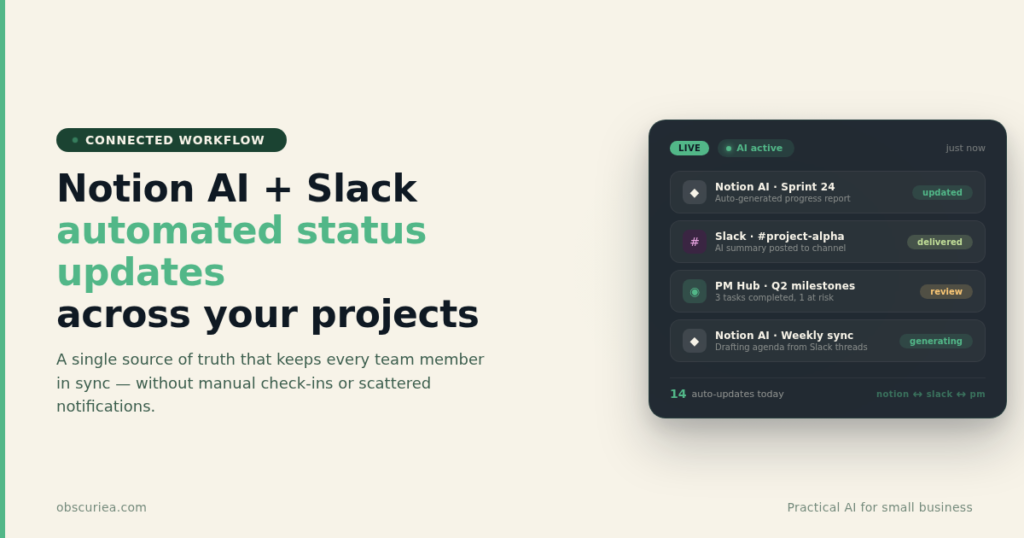
Notion AI + Slack: Setting Up a Self-Managing Project Management System for Your Team
TL;DR: Most teams don’t have a project management problem — they have a coordination tax problem. Notion AI handles the status aggregation, context assembly, and update routing. Slack carries the signal to the right people at the right moment. Together, they can remove 4–6 hours of weekly administrative overhead per project manager. Setup takes roughly 3–4 hours upfront. The payoff starts in week two.
Environment: Notion AI Plus plan, Slack Business+, tested across a 6-person product team over a 60-day sprint cycle. Notion workspace version as of Q2 2025. Slack Workflow Builder (native, no third-party automation layer required for core setup).
The Broken Workflow: Why Your Coordination Tax Keeps Growing
Here is what a typical week looks like before this Notion AI and Slack system exists.
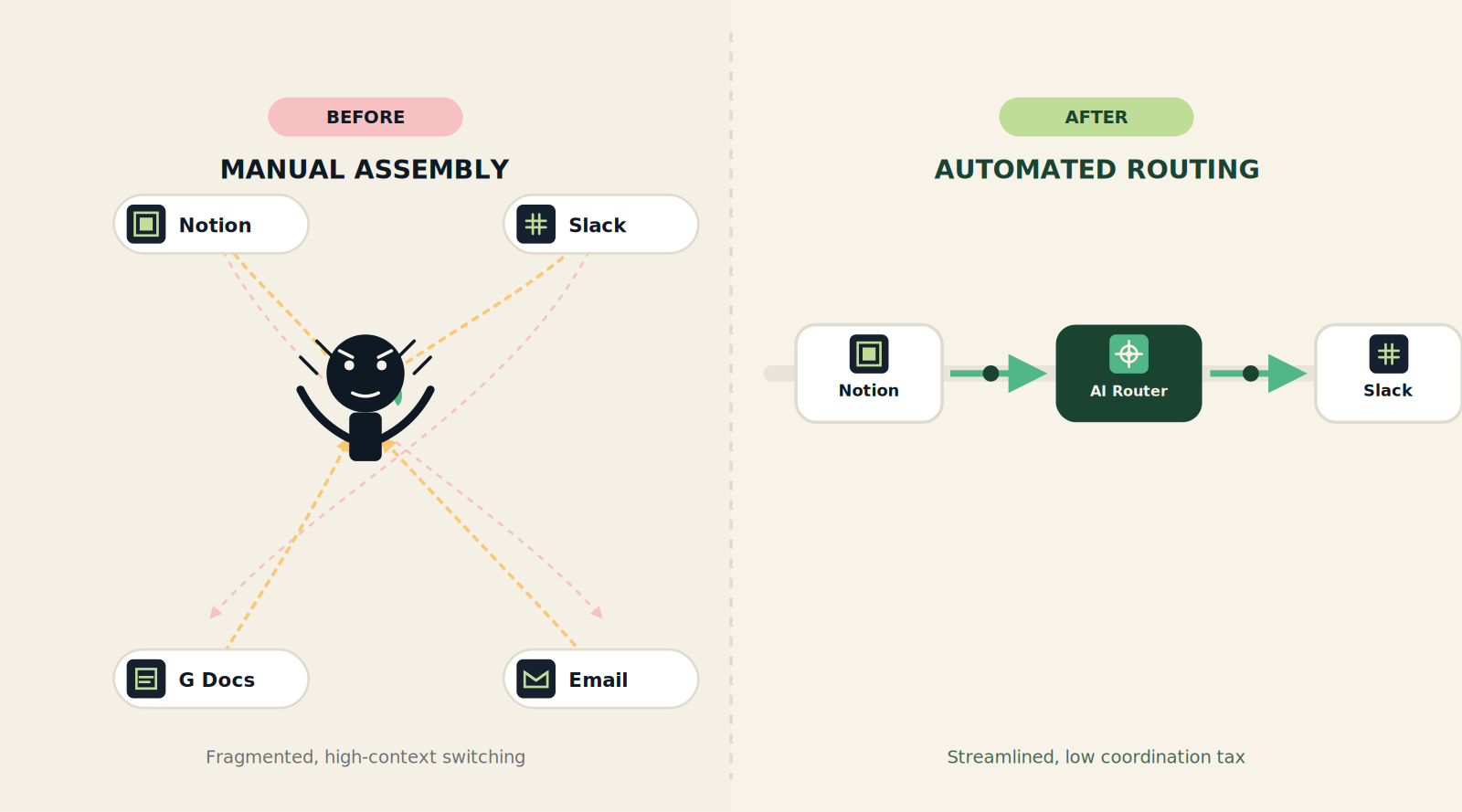
Monday morning: someone asks for a status update on the onboarding feature. The project manager opens four browser tabs — Notion for tasks, Slack for the thread where the decision actually happened, Google Docs for the spec, and email for the stakeholder sign-off. They spend 40 minutes assembling a paragraph that should have written itself.
Wednesday standup: a blocker surfaces that was technically documented three days ago in a Notion task comment. Nobody saw it because nobody knew to look. The PM finds out about it live in the meeting.
Friday: leadership wants a project health summary. The PM writes it from scratch — again — pulling from the same sources they pulled from Monday.
That pattern, repeated across every project and every sprint, is the coordination tax. It is not a human failure. It is a structural failure. The information exists. The system just does not move it.
The weekly time cost of this pattern for a single PM managing two active projects: approximately 5–7 hours. None of that work produces a line of code, a shipped design, or a decision. It produces documents that describe work other people already did.
The fix is not a new project management tool. It is an automated coordination layer that sits on top of the work that already exists — reading Notion’s project context and routing signals through Slack to the right people without a human in the middle.
The Automated Replacement: How Notion AI + Slack Actually Works
The system works on a three-layer logic: Notion as the brain, Slack as the nervous system, Notion AI as the processing layer between them.
Notion holds the source of truth — tasks, specs, meeting notes, decisions, blockers, and ownership. Notion AI reads that context continuously and produces structured outputs: status summaries, blocker alerts, action item drafts. Slack delivers those outputs to the people who need them, in the channels where work is already being discussed.
The trigger-action-output chain looks like this:
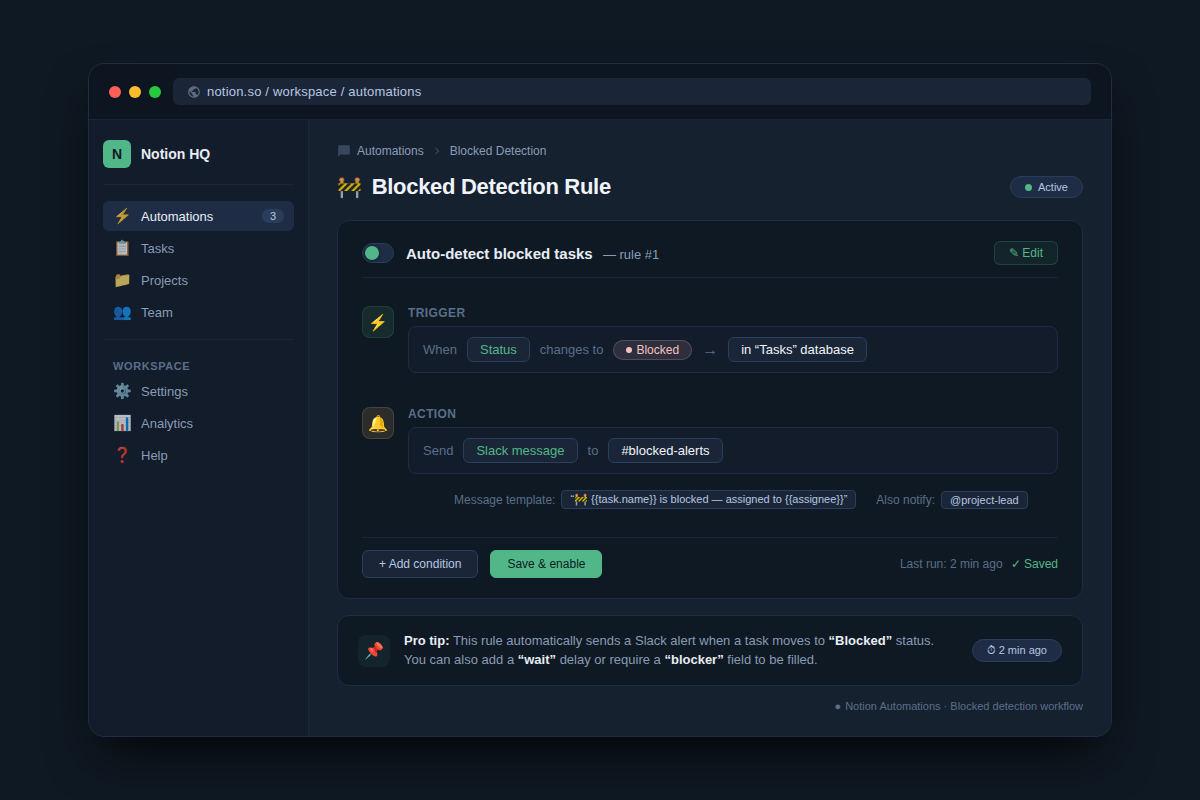
Trigger: A Notion task status changes to “Blocked”
Action: Notion AI reads the task context, the associated project page, and the owner field
Output: A formatted Slack message goes to the #project-blockers channel and DMs the task owner with a one-paragraph summary and a direct link
No PM intervention. No manual update. The information that already existed in Notion surfaces in the place where the team is paying attention.
A second loop handles weekly status reporting:
Trigger: Friday at 9:00 AM (scheduled, not event-based)
Action: Notion AI scans the project database, pulls all tasks updated in the past 7 days, identifies patterns — slipping deadlines, repeated blockers, ownership gaps
Output: A structured project health digest appears in #project-updates with a direct link to the Notion dashboard for anyone who wants the full context
Leadership reads the digest. They click through if they need depth. The PM does not write anything. The system writes it.
Setup Requirements: What This Actually Takes
Be honest with yourself about the upfront investment before committing to this build.
Time required: 3–4 hours for initial configuration, plus 1 additional hour per project template you want to automate separately.
Technical skill: No coding required. Notion’s workflow rules use a visual builder. Slack’s Workflow Builder is form-based. The connection between them runs through Notion’s native Slack integration — no Zapier, no Make, no middleware unless you want to extend beyond the native feature set.
Prerequisites: Your Notion workspace needs to be structured before automation can read it usefully. This is the part most teams skip, and it is why their automation produces garbage. Specifically:
– Every project must have a single canonical project page (not scattered sub-pages)
– Tasks must have consistent owner fields, status fields, and due date fields — all populated
– Meeting notes must live inside the project page they belong to, not in a separate general notes database
If your workspace does not look like this yet, the automation setup is step two. Workspace restructuring is step one. Budget an extra 2–4 hours for that depending on how distributed your current setup is.
Step 1 — Connect Slack to Notion (20 minutes): In Notion Settings → Integrations → Slack, authorize the connection and specify which Slack workspace receives outputs. This is a one-time step.
Step 2 — Build your first workflow rule (30 minutes): Navigate to any project database, open Automations, and build the blocker-detection rule: when Status field changes to “Blocked,” trigger a Slack notification to your designated channel. Include the task name, owner, and a Notion page link in the message template. Test it by manually changing a task status.
Step 3 — Configure a Custom Agent for status reporting (60–90 minutes): This is where the real leverage lives. In Notion AI settings, build a Custom Agent that watches your project database and runs on a Friday morning schedule. Instruct it to summarize tasks by status, flag any due dates slipping beyond their target by more than 3 days, identify tasks with no owner assigned, and produce a plain-language paragraph for each active project. Route the output to Slack via the integration you already configured. According to [Notion’s own automation documentation](https://www.notion.com/blog/project-management-automation), teams using Custom Agents have eliminated hours of operational coordination work per week — with companies like Ramp running over 300 agents to handle routing and nudging across their entire organization.
Step 4 — Set up the standup digest (30 minutes): Build a second simpler rule: every weekday at 8:45 AM, Notion AI pulls all tasks marked “In Progress” or “Blocked” for each team member and sends them a personal Slack message listing what the system expects them to be working on that day. The team member either confirms, updates the task, or flags a mismatch. Five minutes of human input. Zero minutes of PM chasing.
Step 5 — Template the meeting notes structure (30 minutes): Create a meeting notes template inside each project page with fixed sections: Decisions Made, Action Items, Blockers Surfaced, and Next Meeting Date. When Notion AI processes these pages, the consistent structure means it can extract action items reliably and route them to the right owners in Slack automatically. Inconsistent note formats break this — the template removes the inconsistency.
Failure Modes: What Breaks This Self-Managing System
Every automated workflow has one. This system has three.
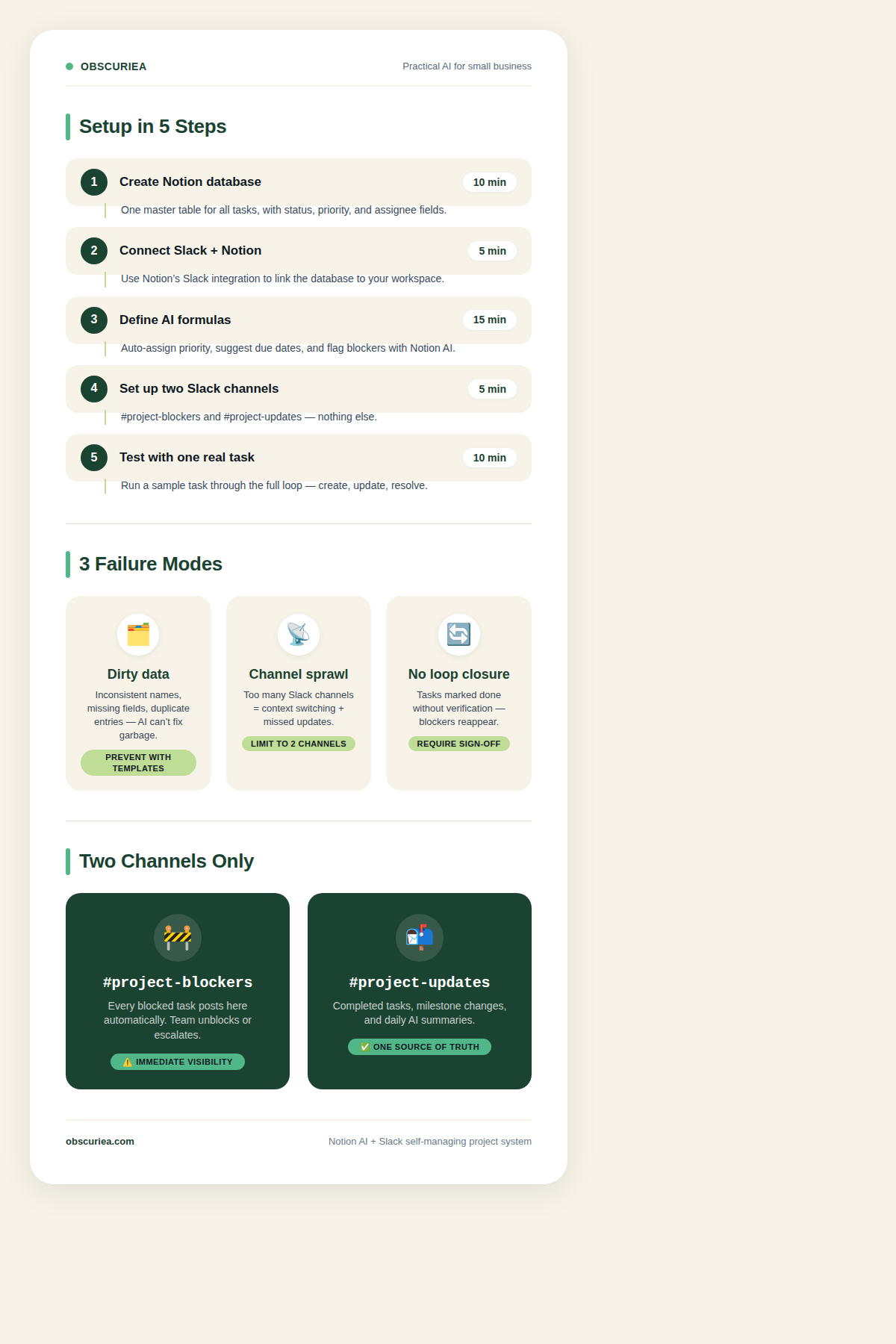
Failure Mode 1 — Dirty data kills the automation. If task owners are not assigned, the Slack notification has nobody to DM. If status fields are inconsistently filled (some tasks say “In Progress,” others say “WIP,” others have nothing), the Custom Agent cannot accurately categorize the project state. The automation does not fix bad data hygiene — it amplifies it. Run a workspace audit before going live. Every task gets an owner. Every task gets a status. No exceptions.
Failure Mode 2 — Slack channel sprawl breaks signal clarity. If you route every notification to #general or create eight new project channels that nobody checks, the system produces noise instead of signal. Define two channels before you start: one for blockers (#project-blockers or equivalent), one for status digests (#project-updates or equivalent). All automation routes to those two channels only. Everything else is manual.
Failure Mode 3 — The system runs but nobody closes the loop. Automation surfaces a blocker. The Slack message is sent. Nobody responds. The blocker is still open three days later. The system did its job — the human layer did not. This is not an automation problem, but it will get blamed on one. Before launch, establish a team norm: any blocker surfaced by the system gets a human response within 4 business hours. A thumbs-up emoji counts. Radio silence does not.
The Friction Box
- Notion AI Custom Agents require the Notion AI Plus plan — this is an additional cost on top of the base Notion subscription. Budget accordingly before scoping the build.
- The native Notion-Slack integration covers notification routing well, but complex conditional logic (e.g., route to different Slack channels based on project type) requires Slack Workflow Builder configuration, which adds setup time.
- Notion AI reads structured databases well. It reads freeform, unstructured pages poorly. Any team with inconsistent note-taking habits will see inconsistent agent outputs until the structure problem is fixed.
- Custom Agents do not yet have memory across runs in the same way a human PM does. They read the current state of the database at runtime — they do not remember what they reported last week unless that report was saved back into Notion. Build in a simple logging structure if trend-tracking matters to your team.
- Slack notification fatigue is real. If the system pings people too often, they will mute the channels. Start with the minimum viable notification set — blockers and Friday digests — before adding more trigger types.
The Straight Talk
This system is built for teams already using both Notion and Slack who are losing 4+ hours per week to manual status assembly and update chasing. If your workspace is already structured with consistent task fields and project pages, the setup is 3–4 hours and the return is immediate.
If your team is running Notion as a loose collection of docs with no consistent database structure, skip the automation entirely until the foundation is clean. You will spend 10 hours configuring a system that produces wrong answers.
This week: open your main project database, check that every active task has an owner and a status, then build the blocker-detection rule in Notion Automations. That single trigger takes 30 minutes and removes the most painful manual step first.