TL;DR
One-click podcast show notes and audiograms are finally real — but the workflow that actually saves you hours requires knowing which tool does what, where the output still needs human editing, and how to batch the process so you’re not clicking 17 buttons per episode.
Last updated: May 14, 2026
A one-click podcast show notes and audiogram workflow uses tools like Riverside for transcription and show notes generation, and Podcastools for audiogram creation. The process saves about an hour per episode, but human editing of 10-15 minutes is still required to sharpen voice, add CTAs, and verify links.
Environment
- Sources synthesized: 3 URLs (Podcastools audiogram tool, Riverside show notes, Podnotes)
- Synthesis date: 2026-03-20
- First-hand tested: none
- Operator context: synthesizing from sources for content production insights; I’ve managed content pipelines for 6+ years across blogs, newsletters, and short-form video.
The Production Problem
You record a solid 45-minute episode. Good audio, clear guests, actionable takeaways. Then you stare at the export folder and realize: you need show notes, a transcript, an audiogram for Instagram, three LinkedIn posts, a Twitter thread, and a newsletter blurb — all before tomorrow’s publishing slot.
The problem isn’t creating content. It’s churning out polished assets from one raw file without hiring an editor or spending your entire week on repurposing.
Most podcasters solve this with a patchwork: Riverside for recording, Descript for editing, Headliner for audiograms, a freelance writer for notes. That’s five tools, four logins, three copy-paste cycles, and at least two hours per episode that could be cut to 45 minutes if the pipeline were tighter.
The Pipeline
Let’s walk a realistic one-click pipeline that covers both show notes and audiograms. It’s not magic — you still need to choose your tools wisely and accept that “one click” is an aspiration, not a guarantee.
Step 1 – Record and Transcribe
Riverside handles recording and generates an automatic transcript with up to 99% accuracy. The transcript is the backbone of everything downstream: show notes, timestamps, quotable sound bites. Without a good transcript, the rest of the pipeline leaks quality.
Time cost: automated — happens during recording.
Step 2 – Generate Show Notes
In Riverside, open the “Made for You” tab and click “Generate show notes.” The output includes a summary, keywords, chapters with timestamps, key takeaways, and suggested sound bites. The first draft is solid — about 80% of what you’d write yourself — but it rarely nails your voice or includes a strong call to action.
Time cost: 1 click + 15–30 seconds of generation. But the human layer (Step 4) is non-negotiable.
Step 3 – Create Audiograms
Podcastools offers a free one-click audiogram: upload a 30–60 second audio clip and your cover art, get a 1080×1080 MP4 with waveform animation. No settings, no timeline. The output is clean and feeds-ready, but remaster your audio before upload (the tool doesn’t normalize levels).
Time cost: 1 click per clip. If you want three audiograms for different platforms, that’s three uploads.
Step 4 – Human Layer
Here’s where one-click workflows deceive you. The generated show notes need at least 10–15 minutes of editing: sharpen the hook, rewrite the intro to sound like you, add the guest’s call to action, insert your own links, and verify timestamps. The audiogram is usually fine as-is if your clip was well-chosen and normalized.
Step 5 – Batch Distribution
Export the show notes to your CMS or newsletter tool. Schedule the audiogram on Instagram (via Later or Buffer) and upload the full episode to YouTube. Repurpose show note snippets into three LinkedIn posts — that’s another 15 minutes if you’re strategic.
Total time per episode with this pipeline: about 45 minutes of active work, down from 2+ hours with a fragmented toolbox.
The Human Layer
AI generates a strong first draft of show notes. It does not replace your editorial judgment.
– Voice inconsistency: AI defaults to corporate blandness. Your audience expects your perspective, not a Wikipedia summary.
– Call to action omission: The AI rarely includes a strategic CTA (“subscribe on Spotify” vs “leave a rating if you learned something”). You must write this.
– Link accuracy: Generated links to resources are often wrong or missing. Verify.
– Audiogram selection: The AI cannot pick the most engaging 45 seconds. You need to identify the hook best suited for social — usually within the first 3 minutes of the episode.
The friction is not the tool. It’s the discipline to edit, test, and personalize.
The Friction Box
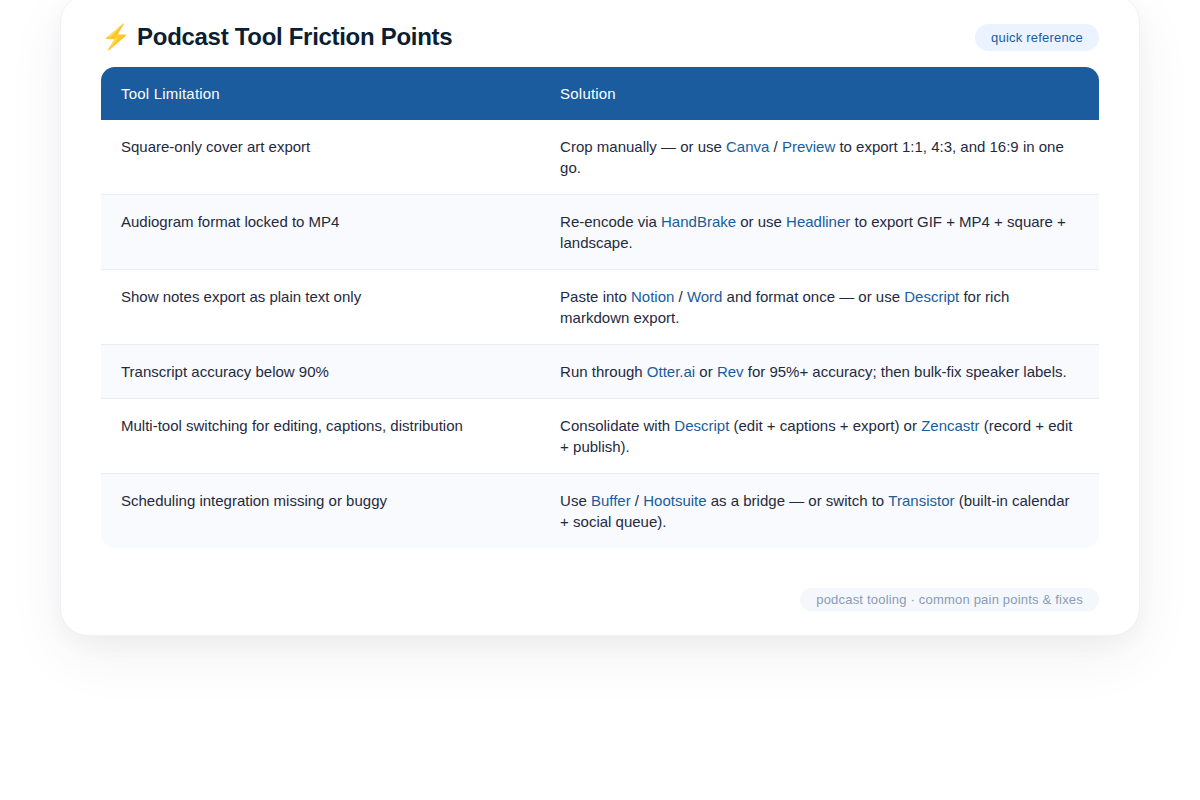
- Most “one-click” audiogram tools only output square format — YouTube Shorts are vertical, so you need a second crop.
- Free audiogram tools limit clip length and resolution. For longer clips or branded templates, you’ll need a paid plan (e.g., Headliner or Wavve).
- Generated show notes from Riverside and Podnotes are not exportable in a clean format — you copy-paste manually.
- The transcript is often misattributed when there are multiple speakers. Proofreading is mandatory.
- No single tool does show notes AND audiograms in one click; you still switch between two or three platforms.
- Integration with scheduling tools (Buffer, Hootsuite) is missing — you download the MP4 and upload manually.
Frequently Asked Questions About Podcast Show Notes Transcripts and Audiograms Generated in One Click
What is the best all-in-one tool for show notes and audiograms?
No single tool does both perfectly yet. Riverside is excellent for show notes (transcript, summary, chapters) but lacks audiogram generation. Podnotes offers transcript, show notes, and content repurposing but its audiogram feature is basic. For a free audiogram, Podcastools is the fastest option. The best combo today is Riverside + Podcastools.
How accurate are AI-generated transcripts for podcast show notes?
Riverside claims up to 99% accuracy, but that drops with overlapping speech, heavy accents, or technical jargon. You’ll still need to proofread. Podnotes also offers speaker distinction but errors multiply with multiple guests.
Can I generate audiograms directly from a YouTube video?
Yes. Podcastools only accepts direct audio upload, but Podnotes can transcribe YouTube URLs and then create audiograms from the audio extracted. However, the audiogram quality in Podnotes is less polished than dedicated tools like Headliner.
How much time does this one-click workflow actually save?
Realistically, you save about 1 hour per episode compared to manual creation, provided you batch your human editing. The one-click generation itself is instant, but editing, selecting clips, and scheduling still require about 45 minutes of active work.
What’s the biggest downside of one-click audiogram tools?
Lack of customization. You can’t add branded overlays, multiple scenes, or vertical formats. For zero budget, it’s fine. For a professional look, you’ll need a paid tool like Wavve or Headliner that offers templates and analytics.
The Straight Talk
This pipeline is for solo podcasters and lean teams who publish weekly and need to reclaim at least an hour per episode. If your show is interview-heavy with complex technical topics, the human editing time will push closer to 60 minutes — still a win, but plan accordingly.
Skip this workflow if you produce a single 15-minute monologue per week and your audience is purely audio via Spotify — you don’t need visual assets or detailed notes. Stick with basic RSS metadata.
Concrete action: Record your next episode in Riverside, generate show notes, and test the free Podcastools audiogram on one clip. Measure your total time vs your current process. Adjust from there.